WordPress WP-Cron Sync for Google Docs Publishing
Brasth
Understand WordPress WP-Cron sync for Google Docs publishing, why low-traffic sites miss schedules, and when to add real server cron for reliability now.
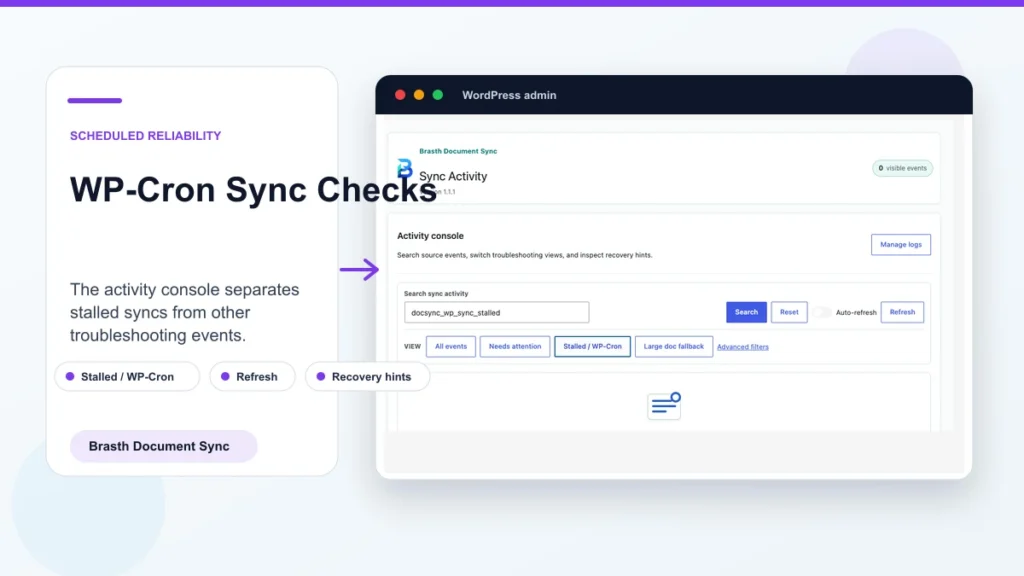
WordPress WP-Cron sync is the scheduler many plugins use for background work. For Google Docs publishing, that means Brasth can run document sync jobs in WordPress, but the site still needs traffic or server cron to trigger scheduled events reliably.
Related reading: sync troubleshooting checklist, plugin overview, OAuth setup notes.
What WP-Cron does
WP-Cron is WordPress scheduling. It checks due tasks when WordPress receives traffic. Plugins use it for background jobs such as sync, cleanup, and scheduled maintenance.
That request-driven model is convenient, but it is not the same as system cron running every minute on a server.
Why low-traffic sites miss schedules
If no one visits the site, WordPress may not check due events. A sync that should run in the background can be delayed until the next request wakes WP-Cron.
This is normal WordPress behavior, not a Google Docs issue.
How Brasth uses scheduled work
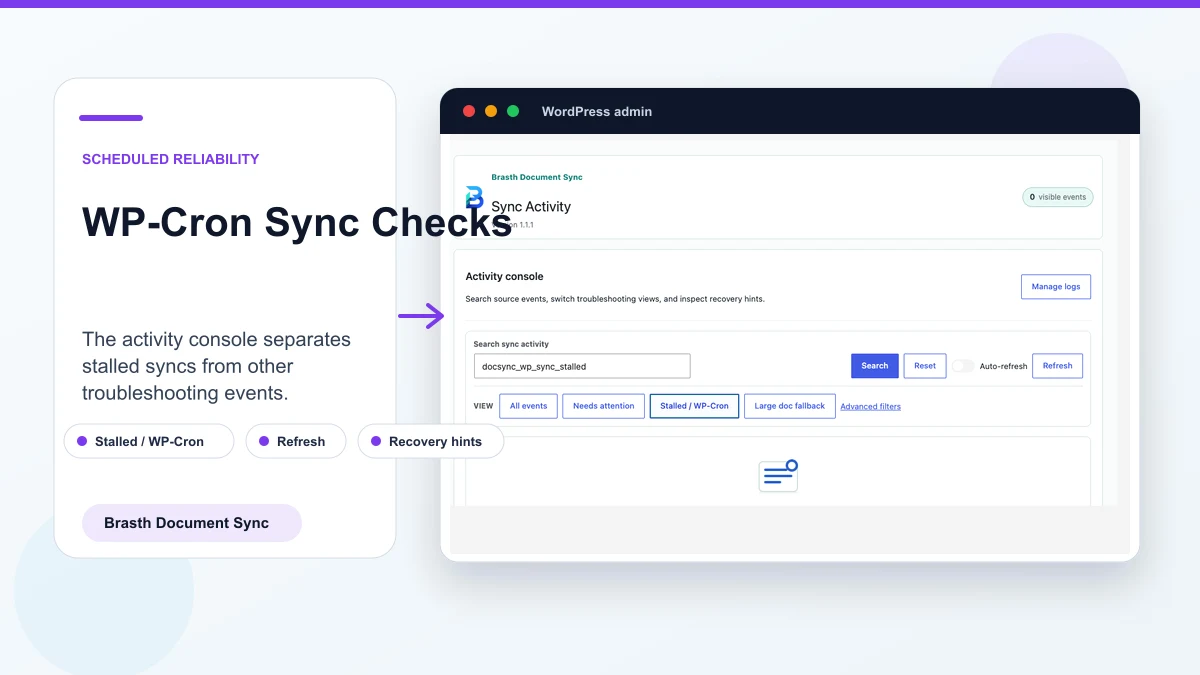
Brasth uses background sync to process linked documents without forcing every action into a page load. The Sources table and Sync Activity logs show what happened after the job runs.
Manual sync is still useful for testing a source immediately, but scheduled publishing should not depend only on sporadic traffic.
Get Brasth Document Sync on WordPress.org
When to configure server cron
Use real server cron when the site has low traffic, strict publishing windows, blocked loopback requests, or a host that disables normal WP-Cron behavior.
A common setup disables built-in WP-Cron and calls `wp-cron.php` from system cron every five or ten minutes.
- Low-traffic brochure sites.
- Private staging sites behind basic auth.
- Editorial sites with scheduled sync expectations.
- Hosts that recommend replacing WP-Cron.
How to test the scheduler
Run a manual sync first. If manual sync succeeds but scheduled sync lags, focus on WP-Cron. Check hosting logs, server cron output, and plugin logs for delayed or missed jobs.
Keep the test simple: one known document, one target post, one expected sync window.
What not to blame first
Do not start by recreating OAuth credentials if manual sync works. That usually means Google access is fine and the scheduler needs attention.
Also avoid publishing directly from the document until you know whether scheduled sync is simply delayed.
Keep reading the publishing library
Browse more setup, workflow, Gutenberg, and media import notes for WordPress publishing teams.
Browse resources