
Gutenberg
Default synced layouts for block-editor imports.
- Clean Article
- Documentation
- Plain Blocks
WordPress plugin Version 1.1.5
Sync Google Docs into WordPress
Editorial teams keep Google Docs as the source of truth and publish clean WordPress content.
You bring your own Google Cloud OAuth web client. Each WordPress user connects their own Google account. This release is not a hosted Google connector.
See it
One-way Google Docs → WordPress. Self-managed OAuth. Version 1.1.5.
Add Sync Doc, pick a document, then Create synced draft.
Search events and switch between Needs attention and All events.
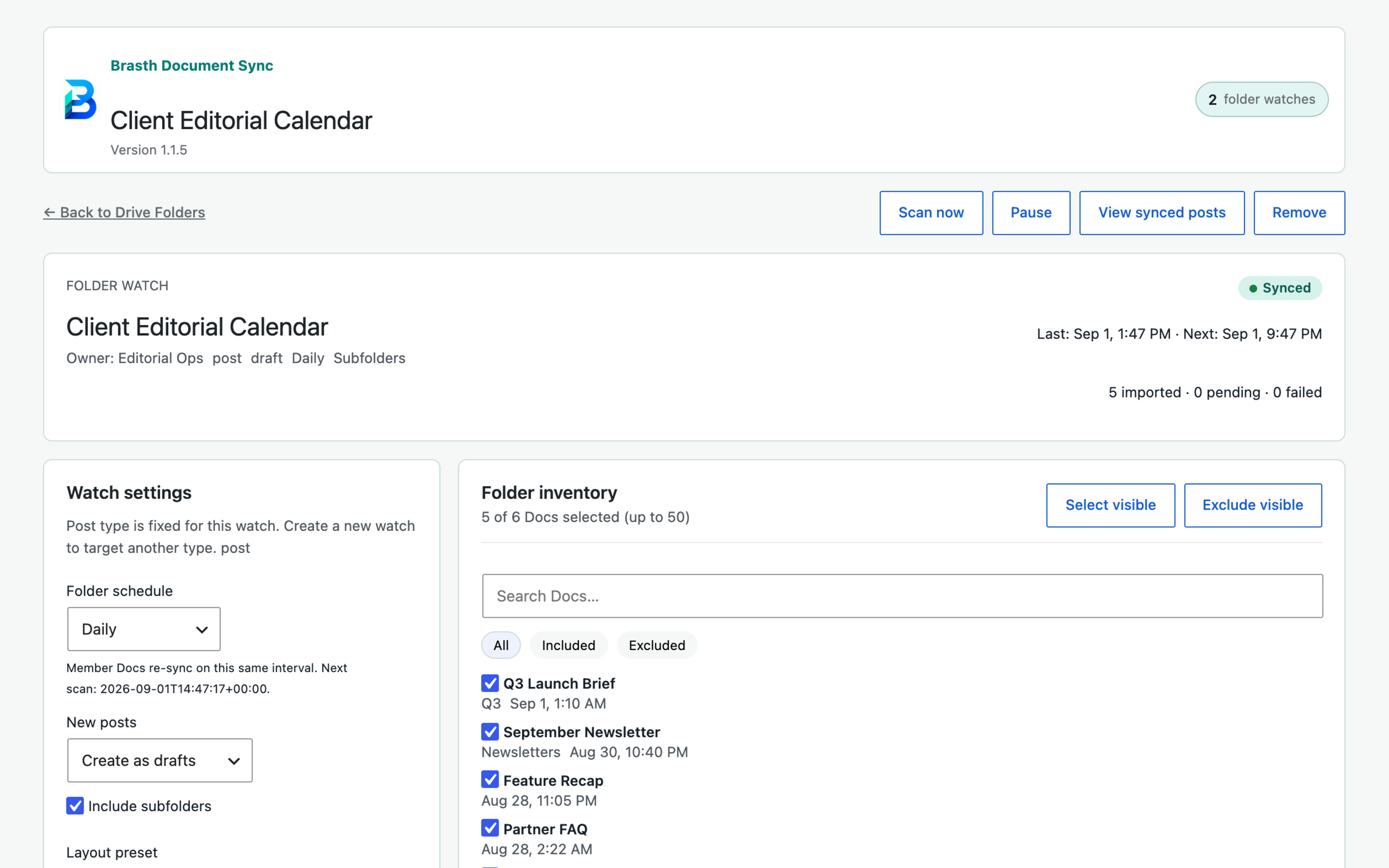
Review watch health, settings, and included Docs. See the 1.1.5 notes and the guide.
The Sync column, then Sync now and Change Doc in the editor meta box.
What it does
Writers stay in Google Docs. WordPress receives sanitized HTML, imported images, and Gutenberg blocks — or an Elementor layout, if that is how the destination is built.
Google Docs remains the document. Sync writes into posts, pages, and enabled public custom post types. It updates linked content; it does not delete WordPress posts.
The site owner supplies a Google Cloud OAuth web client. There is no Brasth-hosted Google connection in this release. Tokens are stored per WordPress user.
Browse My Drive and shared drives from WordPress. Or paste a Google Docs URL or raw file ID when you already know the document.
Docs export as HTML ZIP packages. Embedded images land in the Media Library. HTML is sanitized and converted to Gutenberg blocks. Large documents fall back to the Google Docs API if ZIP export is blocked.
WP-Cron keeps sources current. Each source shows status. Sync Activity logs are searchable, with filters and recovery hints. Clearing logs does not detach documents or delete content.
The site OAuth secret and per-user tokens are encrypted with WordPress salts. Uninstall removes settings, tokens, and scheduled events. Optional anonymous telemetry is off by default.
Layouts
Choose how a synced document should land. Gutenberg and Elementor keep separate preset selectors, so the two paths do not overwrite each other.
Default synced layouts for block-editor imports.
Native Elementor widget layouts for Elementor sync.
Heuristics aimed at technical writing already structured in Google Docs.
Headings, paragraphs, lists, tables, code, callouts, and images convert to Gutenberg blocks on the way in.
How it works
DocSync walks the site owner through OAuth in a setup wizard, then each WordPress user connects the Google account they write with.
Add the plugin from WordPress.org or upload the ZIP, then activate Brasth Document Sync.
One project, with the Drive and Docs APIs enabled, an OAuth consent screen, and a web client.
The setup screen shows the authorized redirect URI to add to that OAuth client.
Save the client ID and secret, connect a Google account, and link a Doc to a post or page.
In the admin
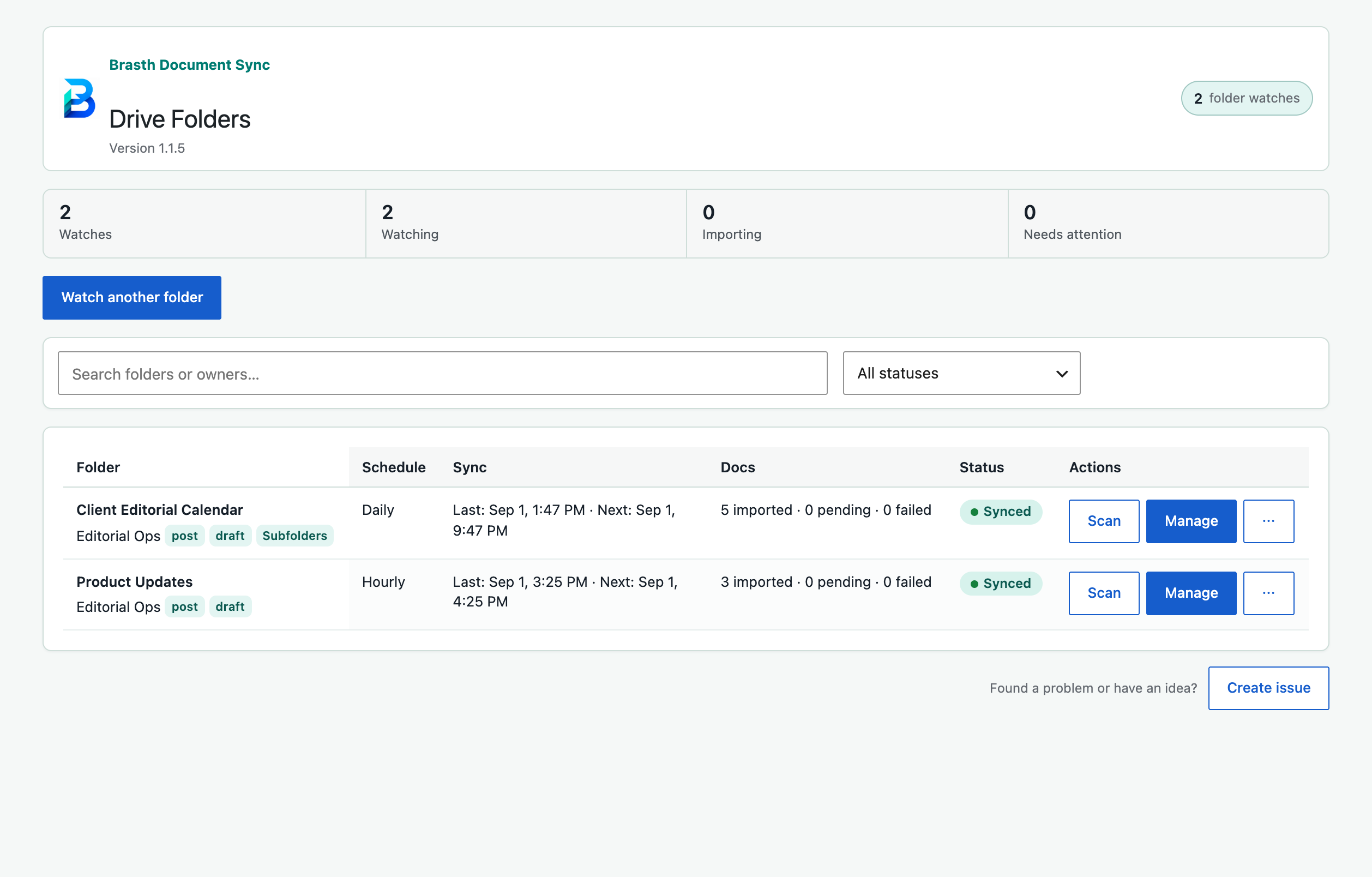
Watch a client folder, choose which Docs belong, monitor each import, and review the WordPress drafts.
Find folder watches, filter status, and open the next workflow.
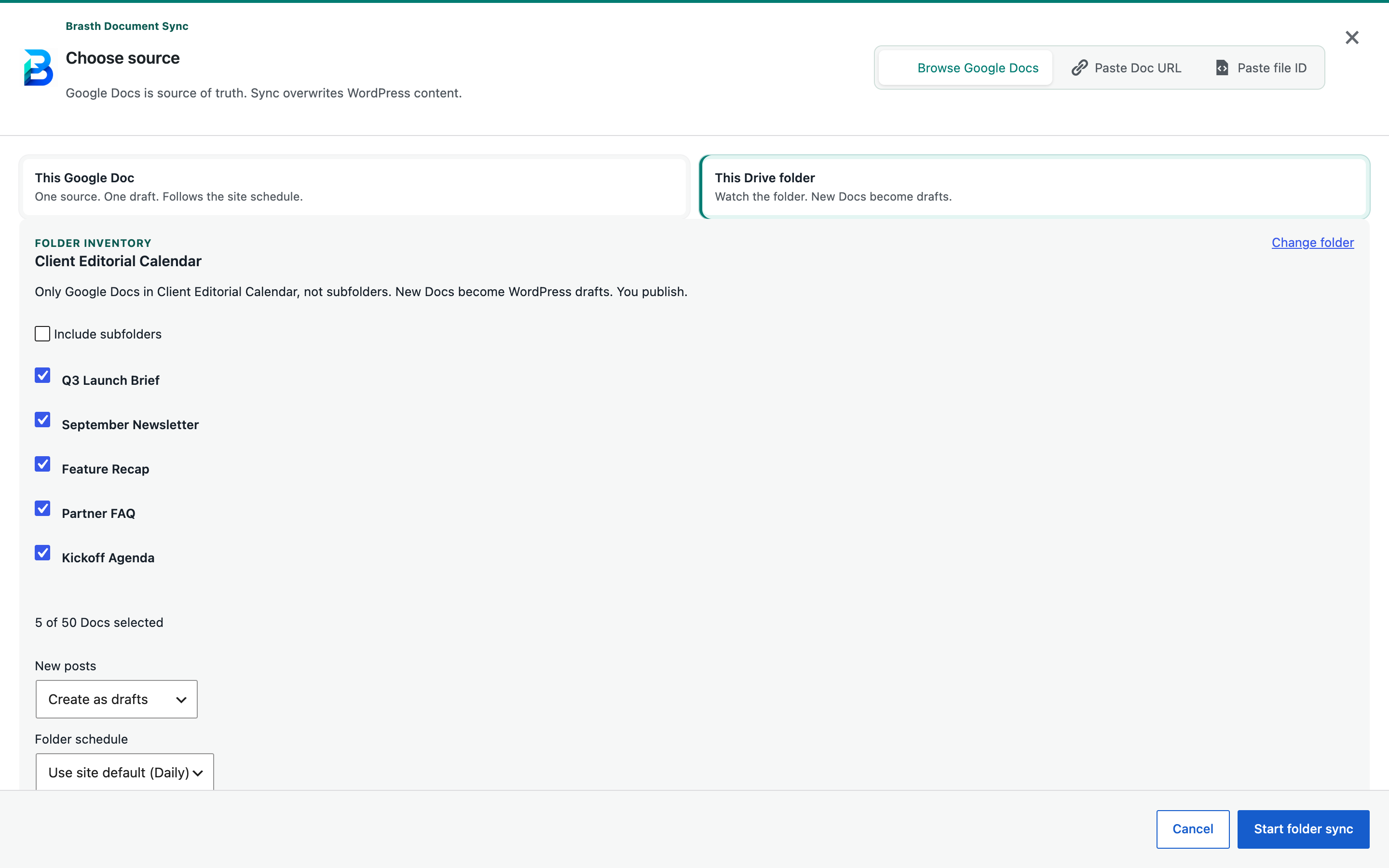
Review the inventory, select Docs, and configure new drafts.
Check schedule, watch settings, scan health, and imported Docs.
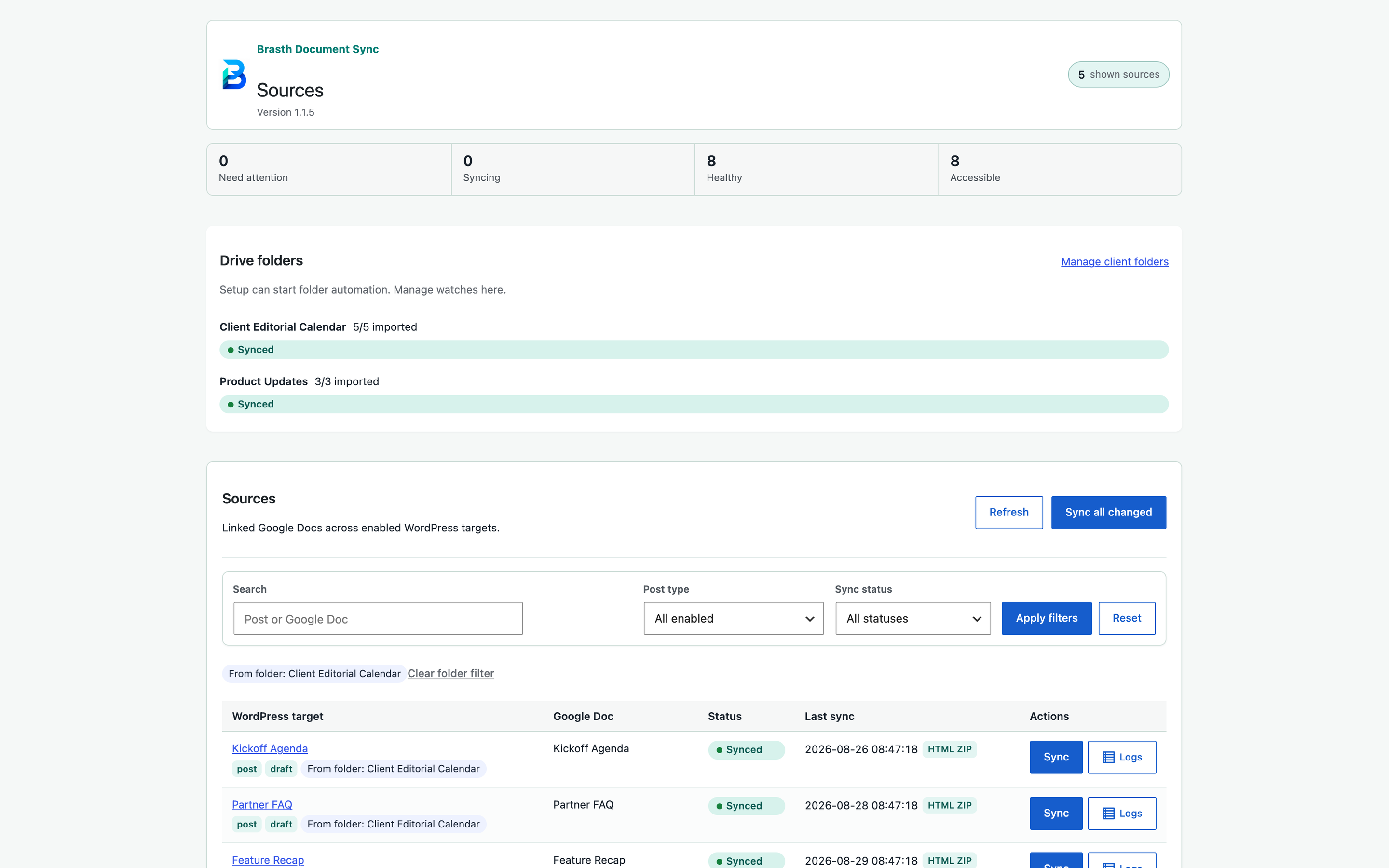
See each folder Doc beside its WordPress destination and status.
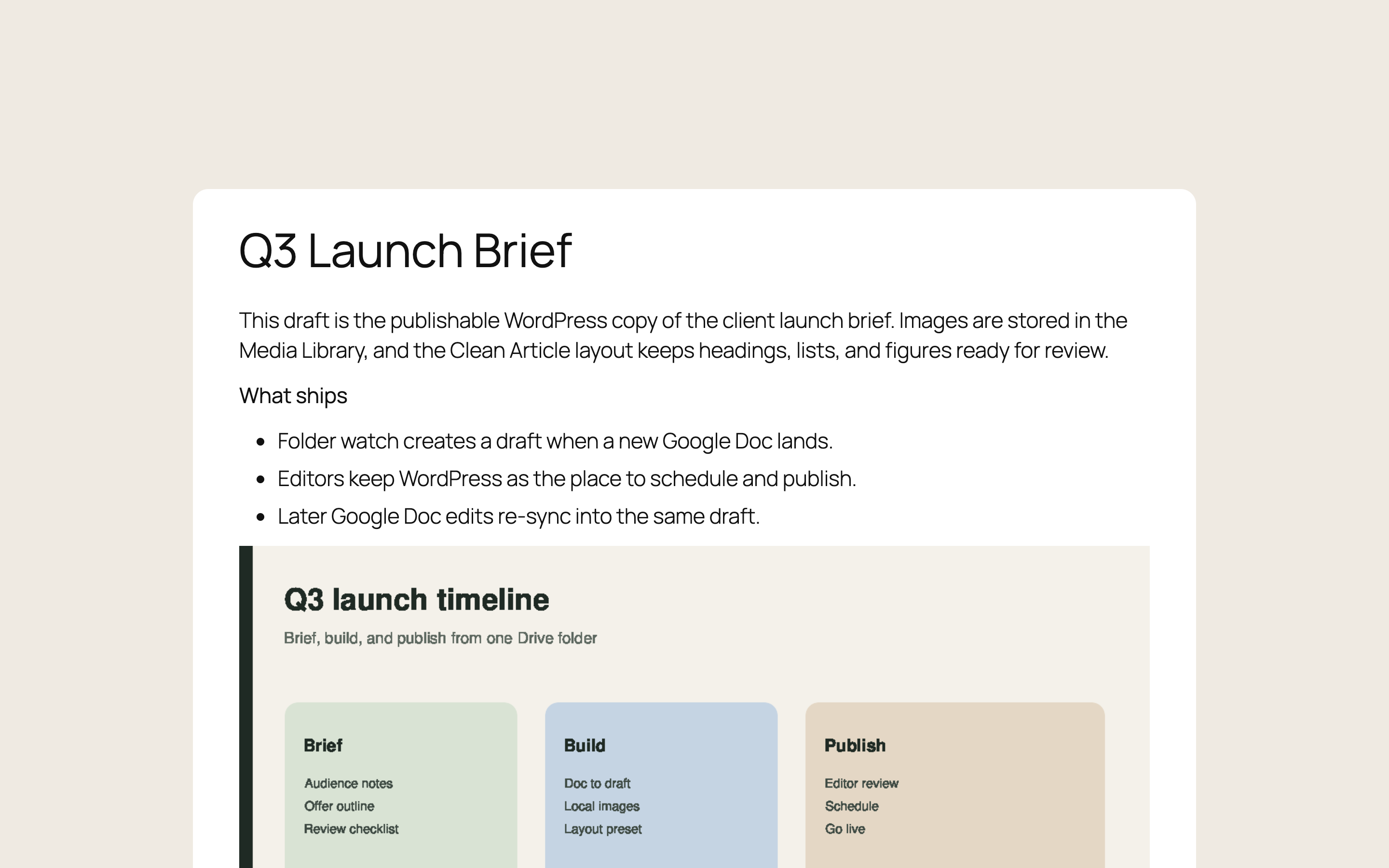
Review a publishable draft with local media and clean layout output.
Get DocSync
Version 1.1.5. Requires WordPress 6.4 or higher and PHP 8.1 or higher. Source is on GitHub; the installable plugin is in the WordPress.org directory.