
Before you start
You need a WordPress site on version 6.4 or higher, PHP 8.1 or higher, and a Google account that can create a Google Cloud project. After OAuth is saved, each WordPress user connects their own Google account. The plugin requests the drive.readonly scope so connected users can browse and sync documents their account can already read.
Sync is one-way: Google Docs → WordPress. Linking a document means later syncs overwrite the WordPress content for that post or page. Sync does not delete WordPress posts.
Install the plugin
-
01
WordPress
Upload or install from the directory
Upload the
brasth-document-sync-for-google-docsfolder to/wp-content/plugins/, or install the plugin ZIP through Plugins → Add New → Upload Plugin. You can also install it from the WordPress.org listing. -
02
WordPress
Activate Brasth Document Sync
Activate the plugin from the WordPress Plugins screen. Open Brasth Document Sync in the admin. The setup wizard will show the authorized redirect URI and the next incomplete OAuth step.
Create the Google Cloud app
Use a single Google Cloud project for the APIs, the OAuth consent screen, and the web client credentials.
-
03
Google Cloud
Create or select a project
In Google Cloud, create a new project or select an existing one that will own the OAuth client used by this WordPress site.
-
04
Google Cloud
Enable Drive and Docs APIs
Enable both the Google Drive API and the Google Docs API in that same project. Drive lists and exports documents; Docs is used when a large HTML ZIP export is blocked and the plugin falls back to the Docs API.
-
05
Google Cloud
Configure the OAuth consent screen
Configure the consent screen for the WordPress site users who will connect their Google accounts. Those users will authorize read access to Google Drive files they can already open.
-
06
Google Cloud
Create an OAuth 2.0 web client
Create an OAuth 2.0 client of type Web application. This is the client ID and client secret you will paste into DocSync. The site owner holds these credentials; Brasth does not issue them.
-
07
Google Cloud + wizard
Add the redirect URI from the wizard
Copy the authorized redirect URI shown in the Brasth Document Sync setup wizard and add it to the OAuth web client. The URI is generated for your site; do not invent one.
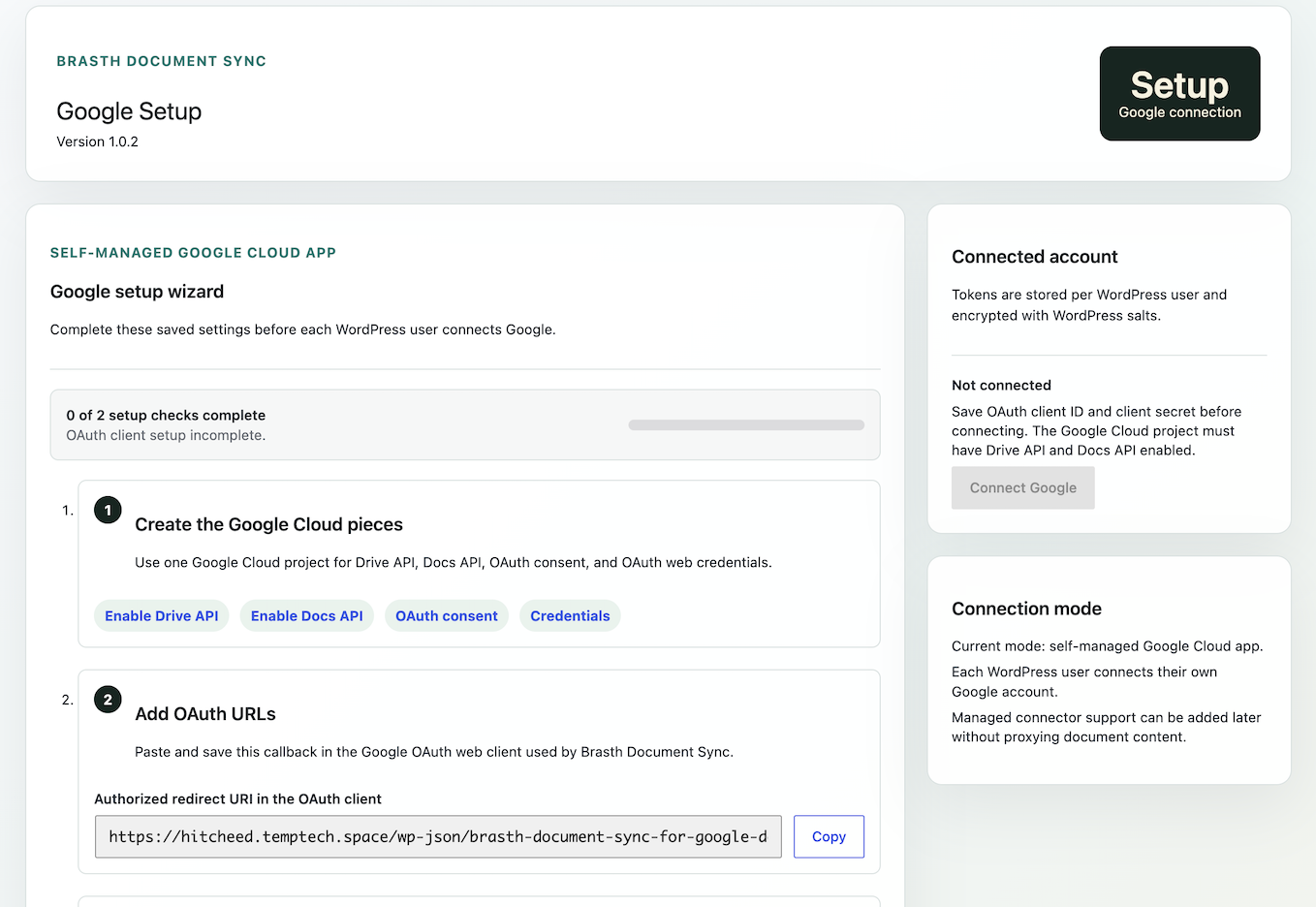
Self-managed OAuth, a copyable redirect URI, and the Connect Google control — disabled until credentials are saved.
Connect an account and link a Doc
-
08
WordPress
Save the client ID and secret
In WordPress admin, open Brasth Document Sync and save the OAuth client ID and client secret. The client secret is encrypted with WordPress salts before it is stored.
-
09
WordPress
Connect a Google account
Each WordPress user connects their own Google account. Tokens are stored per user and encrypted. Rotating WordPress salts invalidates those credentials, and users must reconnect.
-
10
WordPress
Link a document
Browse My Drive or shared drives, or paste a Google Docs URL or file ID. Link the document to a post, page, or an enabled public custom post type, then sync. Images are imported into the Media Library; HTML is sanitized and converted to blocks.
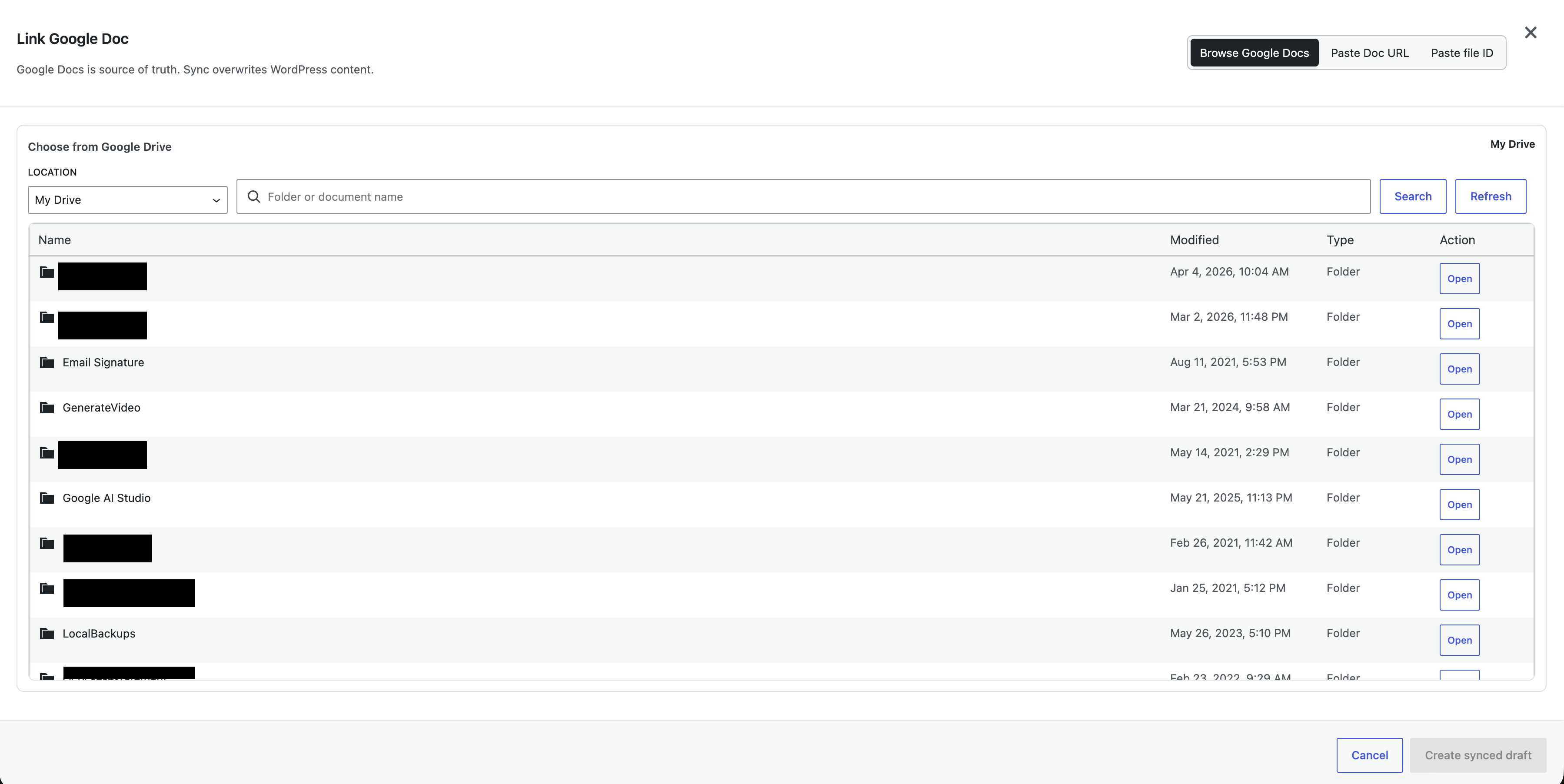
My Drive and shared drives, with search and folder navigation.
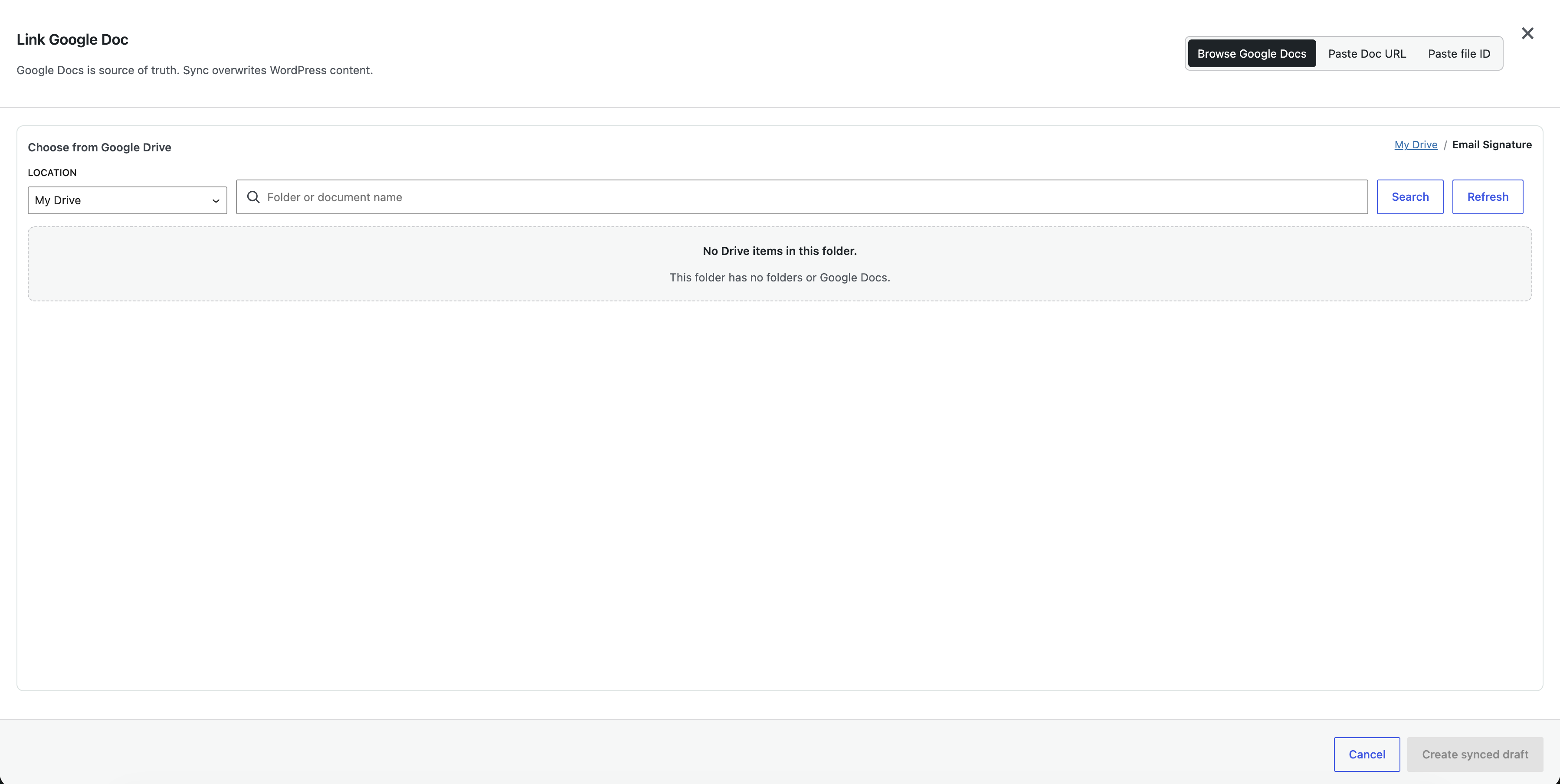
If a folder has no Docs the browser says so, and you can search or go back.
After the first sync
Background sync uses WP-Cron. Source status stays visible on the posts list and in the editor meta box. Sync Activity logs are searchable, with troubleshooting views and recovery hints. You can clear logs for one source or all visible sources without deleting synced content or breaking the source link.
On low-traffic sites, or sites with DISABLE_WP_CRON, configure a real server cron job that calls wp-cron.php so scheduled syncs still run.
Layout presets are chosen in Setup and can be overridden per source. Gutenberg offers Clean Article, Documentation, and Plain Blocks. Elementor offers Elementor Hero Page and Elementor Feature Block. The Documentation preset looks for code, fenced code, and Note / Tip / Warning / Important / Caution callouts.
Uninstall
Uninstall removes plugin settings, encrypted user Google tokens, and scheduled cron events. Synced posts and imported media stay. Linked post metadata is kept unless you define DOCSYNC_WP_FULL_UNINSTALL or return true from the docsync_wp_full_uninstall filter.