Google Docs to WordPress Plugin: What It Does
Brasth
Learn what a Google Docs to WordPress plugin does, who needs it, and how Brasth turns drafts into blocks. Install Brasth from WordPress.org starting now.
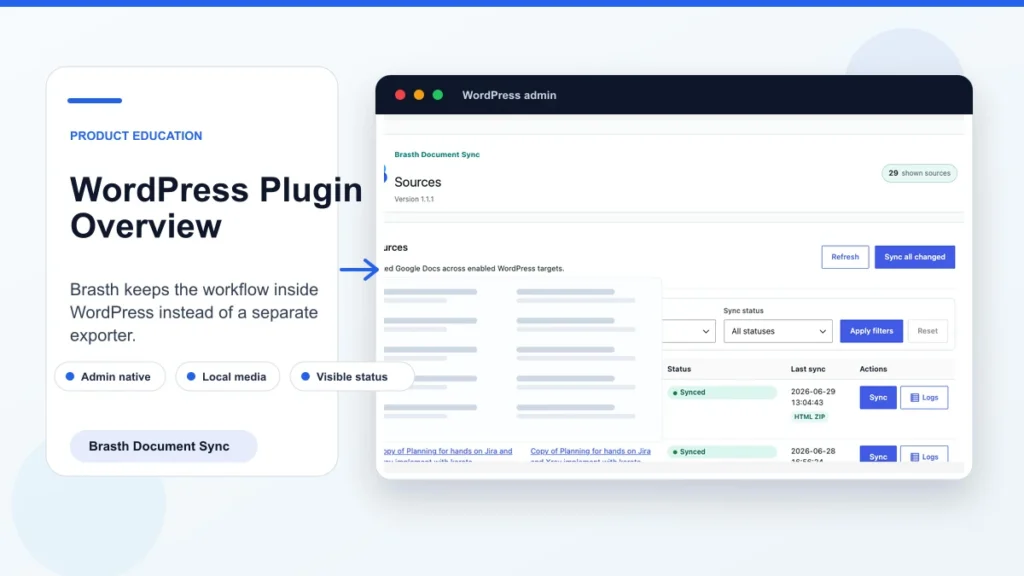
A Google Docs to WordPress plugin helps teams keep writing where collaboration happens while publishing from WordPress. Brasth Document Sync focuses on one job: move readable Google Docs content into WordPress as clean blocks with media and sync status visible to admins.
Related reading: publish without copy-paste, manual copy-paste comparison, privacy and data handling overview, blogger workflow.
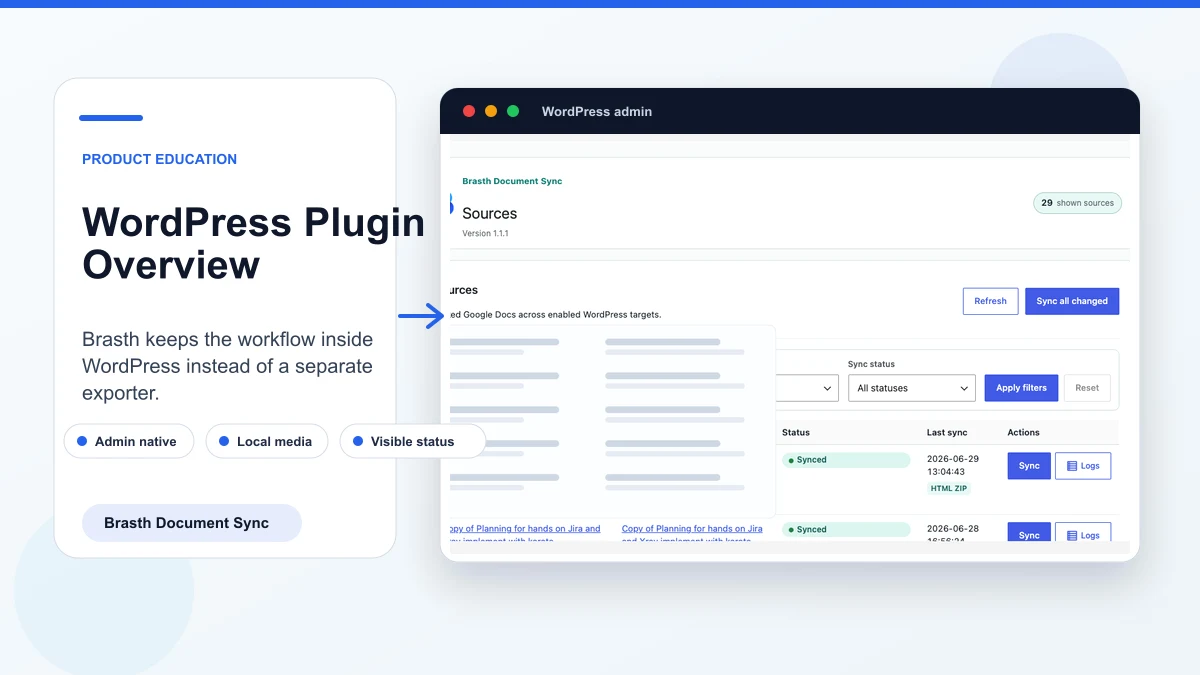
What the plugin connects
Brasth connects a Google account, documents that account can read, and WordPress posts, pages, or supported public custom post types. The site owner provides the Google OAuth client, so the connection is controlled by the WordPress site.
The plugin does not replace WordPress publishing. It gives editors a cleaner import and sync path from the approved document into the CMS.
What happens during sync
During sync, Brasth reads the selected Google Doc, imports supported content, brings images into the Media Library, rewrites image references, and updates the linked WordPress target.
The result is not a screenshot or a document embed. It is WordPress content that can be reviewed, previewed, and published through the normal admin workflow.
Who should use it
The best fit is any WordPress publisher that already drafts in Google Docs. That includes solo bloggers, marketing teams, agencies, SaaS documentation teams, and support teams that maintain recurring guides.
It is less useful if every post is written directly in WordPress or if the team needs a hosted exporter managed outside the WordPress admin.
- Bloggers who want less cleanup after drafting.
- Agencies that manage repeat client handoffs.
- Technical writers who need code and callout-friendly output.
- Admins who want source status and logs inside WordPress.
Get Brasth Document Sync on WordPress.org
What makes Brasth different
Brasth is self-managed inside WordPress. The site owner controls the Google Cloud project, OAuth setup, plugin settings, synced posts, and imported media.
That model is useful when privacy, admin visibility, and local content ownership matter more than a hosted export dashboard.
Setup at a high level
Setup starts in Google Cloud and finishes in WordPress admin. Create the OAuth web client, paste the credentials into Brasth setup, connect a Google account, then link the first document to a target post.
After the first source is linked, editors can repeat the same pattern for additional posts without rebuilding the OAuth setup.
What to check before publishing
Review the post content, image attachments, links, tables, and any code-like sections before publishing. Brasth reduces cleanup, but editorial approval still belongs in WordPress.
If a sync is skipped or fails, use the source status and Sync Activity logs before editing the post by hand.
Keep reading the publishing library
Browse more setup, workflow, Gutenberg, and media import notes for WordPress publishing teams.
Browse resources