How to Publish Google Docs to WordPress Without Copy-Paste
Brasth
Publish Google Docs to WordPress as clean Gutenberg blocks, with local media and sync status. Follow this workflow and install Brasth today with ease.
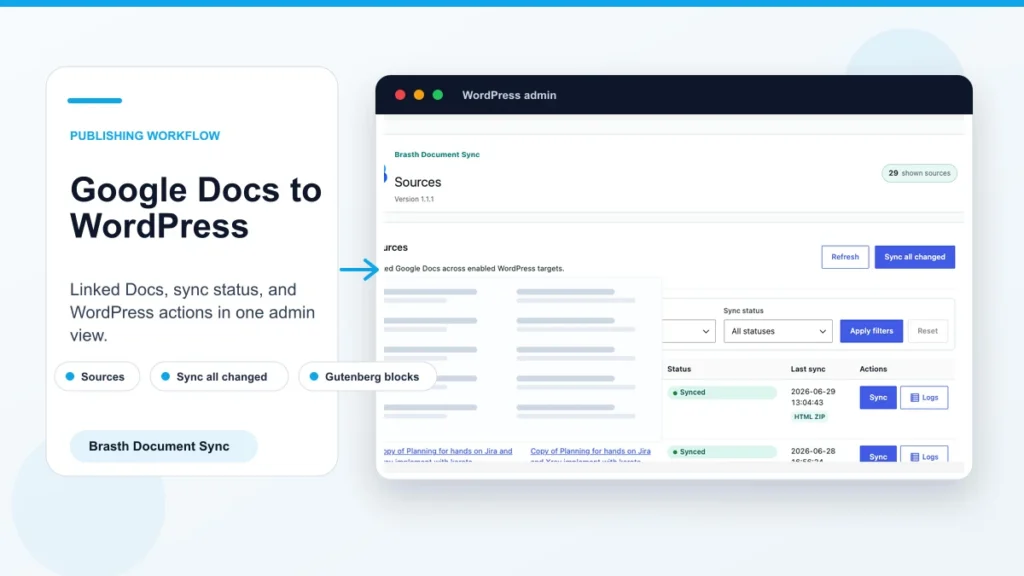
If your team writes in Google Docs and publishes in WordPress, the Google Docs to WordPress handoff is where clean editorial work often turns into cleanup work. Brasth Document Sync gives WordPress admins a repeatable path from an approved document to Gutenberg blocks, local media, and visible sync status.
Related reading: Google Docs to WordPress plugin overview, sync troubleshooting checklist, OAuth setup guide, layout preset release notes.
The copy-paste problem
Copy-paste feels fast for one short post. It becomes slow when every article needs heading cleanup, list repair, image downloads, caption checks, and a final scan for hidden formatting.
The bigger issue is repeatability. When the Google Doc changes after review, editors must remember exactly what was copied, what was adjusted in WordPress, and which images were replaced.
Why Google Docs markup needs cleanup
Google Docs and WordPress do not model content the same way. A document is optimized for collaborative writing. WordPress needs publishable blocks, media library attachments, clean links, and a post record that editors can manage over time.
Pasted content can bring extra spans, inconsistent lists, remote image references, and tables that need manual repair before the post looks native in the block editor.
How Brasth handles the handoff
Brasth Document Sync exports the selected Google Doc, imports supported document structure, and writes clean Gutenberg block markup to the WordPress target. It keeps media in the WordPress Media Library instead of leaving images tied to the draft.
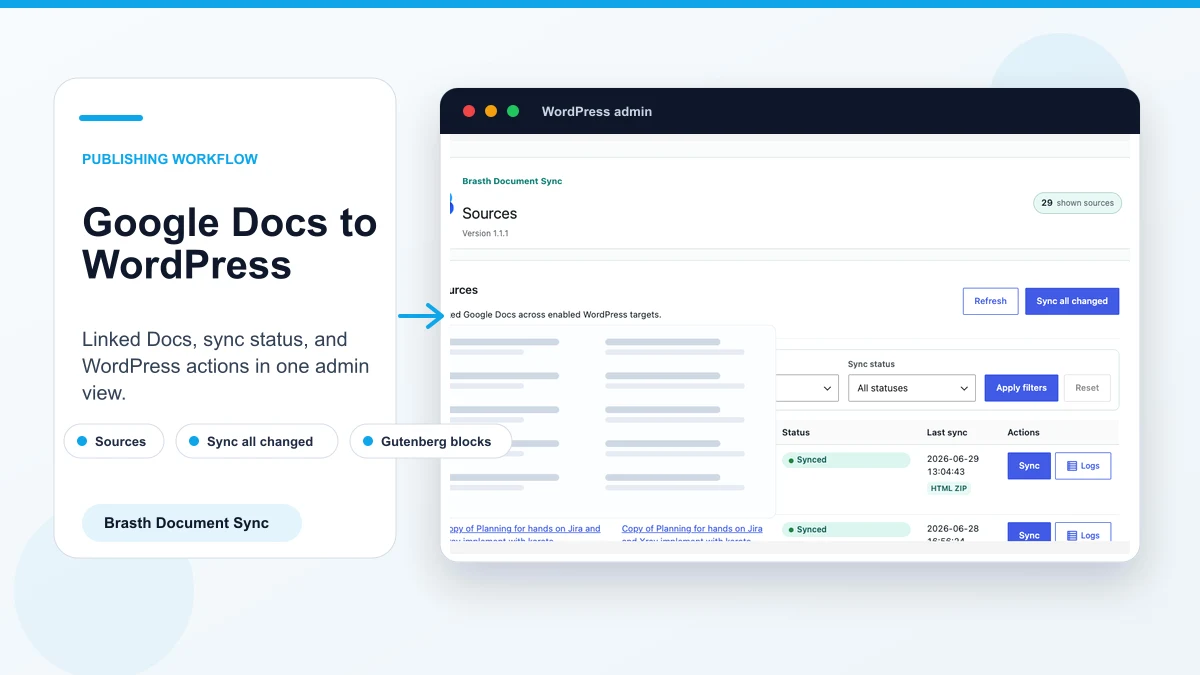
The plugin also records source status in WordPress admin so publishers can see whether a document is linked, synced, skipped, or needs attention.
- Headings, paragraphs, lists, tables, code, callouts, and images become WordPress-friendly content.
- Imported images are attached locally so the post remains under site owner control.
- Sources and sync activity stay visible for review and troubleshooting.
Get Brasth Document Sync on WordPress.org
Step-by-step publishing workflow
Start with the approved Google Doc. In WordPress, connect the Google account, add the source document URL or file ID, choose the target post or page, and run the first sync.
After sync, review the post in WordPress before publishing. Treat the document as the editorial source and WordPress as the publishing system of record.
- Save the self-managed Google OAuth client in Brasth setup.
- Connect the Google account that can read the document.
- Link the document to the WordPress target.
- Run sync and review the block output.
- Publish after confirming images, links, and layout.
Common mistakes to avoid
Do not assume every visual detail in Google Docs should map exactly to WordPress. The better goal is clean, maintainable Gutenberg content that uses the site theme.
Also avoid treating sync as a blind publish button. Editors should still review the post, especially when the document contains complex tables, pasted code, or many images.
When Brasth is the right fit
Brasth fits teams that draft and review in Google Docs but want WordPress to own the final content, media, and publishing workflow. It is especially useful for blogs, support guides, product updates, agency client content, and technical documentation.
Use it when manual cleanup is the bottleneck and your team wants sync visibility inside WordPress admin.
Keep reading the publishing library
Browse more setup, workflow, Gutenberg, and media import notes for WordPress publishing teams.
Browse resources