Google Docs to WordPress Sync Not Working? Checks
Brasth
Fix Google Docs to WordPress sync not working by checking OAuth, source access, WP-Cron, logs, and large-doc fallback. Try Brasth today with confidence.
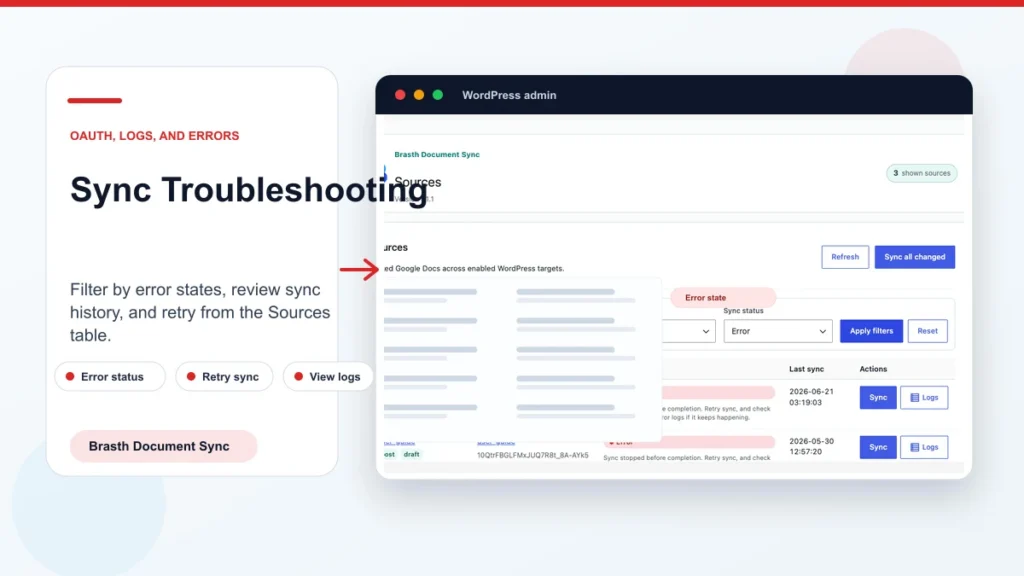
When Google Docs to WordPress sync not working appears in your workflow, start with the boring checks first: OAuth, document access, source status, WP-Cron, and logs. Brasth Document Sync gives admins these clues inside WordPress so the fix does not become guesswork.
Related reading: WP-Cron sync guide, OAuth safety guide, privacy details, publishing workflow.
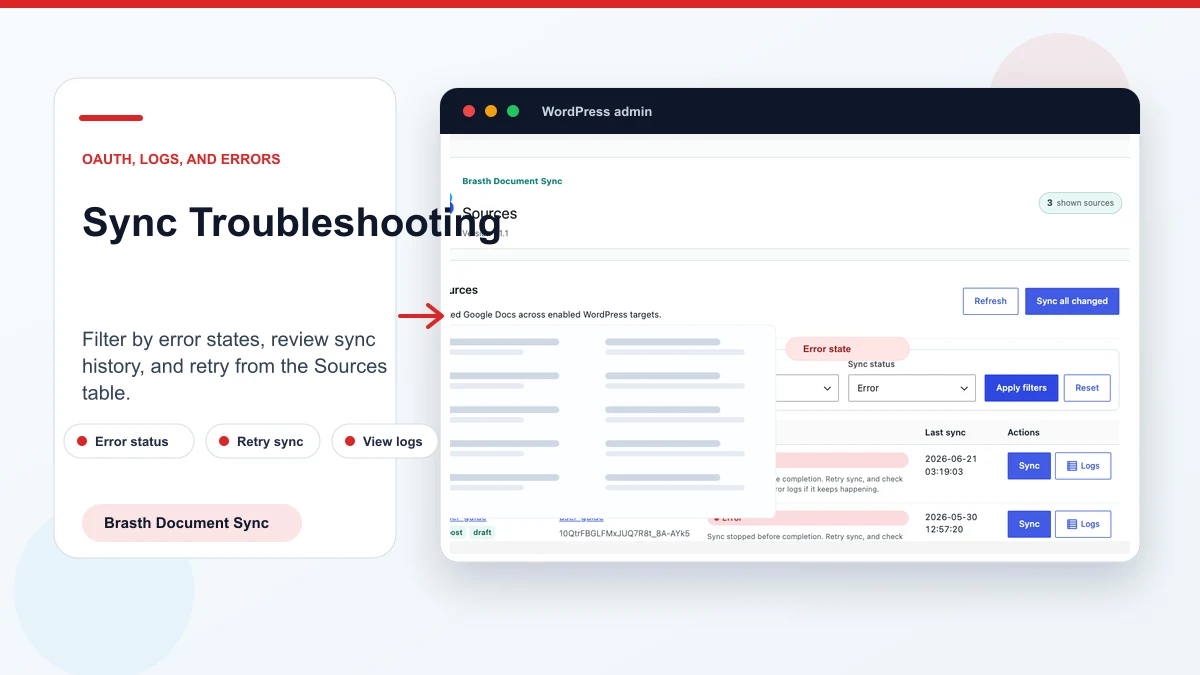
Start with the source status
Open the Brasth Sources table and find the linked document. Confirm the target post, latest sync status, and timestamp before changing plugin settings.
A skipped state usually means Brasth decided not to overwrite content. An error state means the sync path needs attention.
Check OAuth and account access
If the connected Google account changed, lost access, or had credentials invalidated, Brasth cannot read the document. Reconnect the account from setup and confirm the account can open the Google Doc directly.
Rotated WordPress salts can invalidate encrypted tokens, so reconnecting users is expected after that kind of security change.
Review Sync Activity logs
The logs are the fastest way to separate access problems from conversion problems. Filter by source, status, or recent failures, then read the recovery hint before retrying.
Clear logs only after you have captured the useful detail. Clearing logs does not delete source links, credentials, synced content, or media.
Get Brasth Document Sync on WordPress.org
Confirm WP-Cron is running
Manual sync can prove the document path works, but scheduled sync depends on WP-Cron. Low-traffic sites may not trigger scheduled work often enough for reliable publishing operations.
If `DISABLE_WP_CRON` is set, configure a real server cron job that calls `wp-cron.php` on a predictable schedule.
- Check whether manual sync succeeds.
- Check whether scheduled sync events run late.
- Check hosting logs for blocked loopback requests.
- Use server cron for low-traffic sites.
Watch for large-document fallback
Large documents can hit Google export limits. Brasth retries through the Google Docs API fallback before changing post content, so a large document may take longer or show a different diagnostic path.
If a document is unusually long, split it into logical posts or simplify heavy embedded content before retrying.
Avoid blind manual fixes
Do not keep editing the WordPress post by hand without understanding the sync state. Manual edits can be overwritten during a later successful sync.
Fix the source issue, run sync again, and then review the resulting post.
Keep reading the publishing library
Browse more setup, workflow, Gutenberg, and media import notes for WordPress publishing teams.
Browse resources