Google Docs to WordPress Layout Presets: Clean Article vs Documentation
Brasth
Learn when to use Clean Article, Documentation, or Plain Blocks when syncing Google Docs into WordPress with Brasth Document Sync.
Syncing a Google Doc into WordPress solves only part of the publishing problem. The bigger question is what the WordPress post looks like after the sync.
If the imported content still needs a developer or editor to rebuild headings, code blocks, callouts, tables, and image placement, the team has only moved manual cleanup from copy-paste to post-sync review. That is still hidden publishing work.
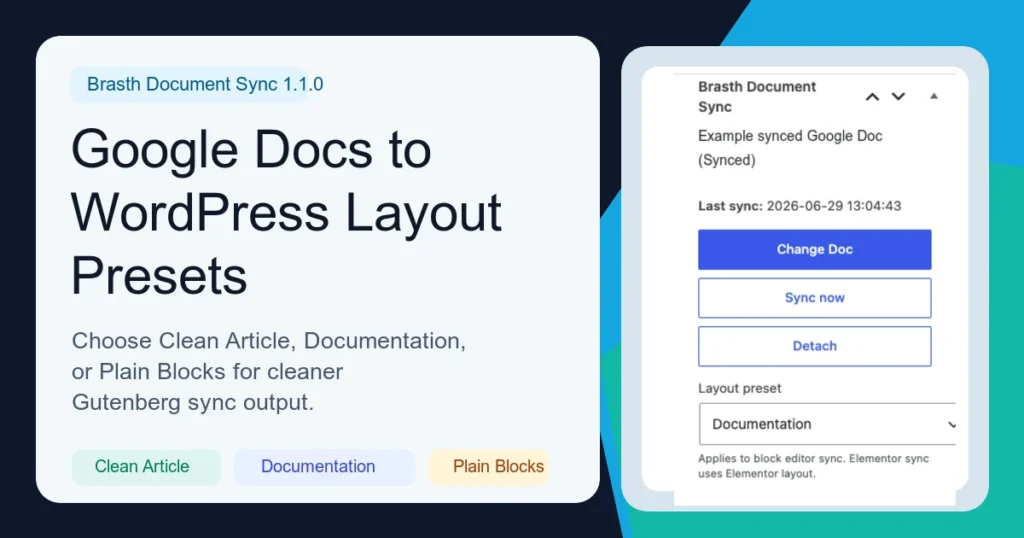
Brasth Document Sync 1.1.0 adds layout presets for Gutenberg imports so site admins and editors can choose how synced Google Docs should become WordPress blocks. The goal is simple: let Google Docs stay the writing source while WordPress receives content that is closer to publish-ready.
What Layout Presets Do
A layout preset is a conversion rule for synced Google Docs content.
Brasth still reads the selected Google Doc, imports images into the WordPress Media Library, sanitizes the exported content, and converts supported structure into Gutenberg blocks. The preset controls how that cleaned document structure is shaped for the WordPress editor.
That matters because different documents need different output.
A normal article should not look like technical documentation. A technical guide should not flatten commands and code examples into ordinary paragraphs. An existing site that already depends on legacy output may need stability more than a new format.
Layout presets give each workflow a clearer default.
Clean Article: Best For Blog Posts And Editorial Content
Clean Article is the default preset for new installs.
Use it for normal publishing work: blog posts, product updates, explainers, announcements, marketing articles, support notes, and editorial drafts. It is designed for content that should read like a WordPress article after syncing.
This preset is useful when the Google Doc has familiar article structure:
- title and section headings
- paragraphs
- lists
- images
- tables
- simple formatting
The practical benefit is that editors can focus on review instead of rebuilding the post body. Google Docs remains the drafting space, but WordPress receives cleaner article-friendly blocks.
Clean Article is the best first choice when the source document is meant to become a readable post rather than a reference page or developer guide.
Documentation: Best For Code, Commands, And Technical Guides
Documentation is the preset to use when the Google Doc contains technical structure.
Use it for developer docs, implementation notes, API guides, internal runbooks, setup tutorials, troubleshooting guides, QA notes, release instructions, and any article where code or commands need to remain readable.
The Documentation preset is built to handle common technical writing patterns, including:
- fenced code examples
- command-line snippets
- XML, JSON, PHP, JavaScript, Java-like, and shell-shaped examples
- file paths and file-tree examples
- Gherkin or Karate-style test steps
- explicit
Note:,Tip:,Warning:,Important:, andCaution:callouts
This is the main difference from a basic Google Docs import. Technical articles often fail when code-looking paragraphs become normal prose. The Documentation preset uses heuristics to group code-like paragraphs into Gutenberg code blocks and keeps labeled guidance as quote-style callouts.
It is not a full programming-language parser, and it should not be described as one. It is a practical publishing layer for the kinds of code and command examples teams often write in Google Docs.
Plain Blocks: Best For Existing Install Stability
Plain Blocks keeps the legacy block conversion behavior.
This matters for existing sites. If a site has already synced content and its editors are comfortable with the current output, changing the default layout without review could create unnecessary churn.
That is why upgraded installs keep Plain Blocks by default, while new installs start with Clean Article.
Use Plain Blocks when stability is more important than improved formatting, or when you want to test layout presets source by source before changing the site default.
Site Defaults And Per-Source Overrides
Brasth Document Sync supports two levels of layout choice.
The site default lives in Setup sync defaults. This is the preset used when a source does not choose its own layout. A site can set Clean Article as the general publishing rule, or choose Plain Blocks when it wants to preserve older behavior.
Each linked source can also override the default. That is useful when most posts are articles, but a few sources are technical guides.
For example:
- Site default: Clean Article
- Product release notes: use site default
- API setup guide: Documentation
- Older migrated post: Plain Blocks
This keeps the workflow simple. Admins choose the normal site behavior once. Editors only override it when the document needs a different output style.
Why Preset Changes Re-Convert Content
A layout preset changes the output policy, even when the Google Doc itself has not changed.
That creates a subtle sync problem. If Brasth only looked at the Google Doc modified time, a preset change could be skipped because the source document is technically unchanged.
Brasth Document Sync handles this with layout fingerprints. When the effective preset changes, the plugin knows the synced output may need to be regenerated. That lets editors switch a source from Clean Article to Documentation and safely re-run sync without editing the Google Doc just to force an update.
The important behavior: preset choice is part of the sync state, not a cosmetic UI setting.
Elementor Sites Still Keep The Elementor Path
Layout presets apply to block editor sync.
If Elementor sync is enabled for a source, Brasth keeps using the Elementor conversion path. The layout selector can still store a Gutenberg preference, but Elementor output uses the existing Elementor layout behavior.
This keeps the boundary clear:
- Gutenberg sync uses Clean Article, Documentation, or Plain Blocks.
- Elementor sync uses the Elementor layout conversion path.
That avoids mixing two different rendering models in one sync run.
Choosing The Right Preset
Use this quick rule:
| Source document | Recommended preset |
|---|---|
| Blog article | Clean Article |
| Marketing post | Clean Article |
| Product update | Clean Article |
| Support article | Clean Article |
| API guide | Documentation |
| Developer tutorial | Documentation |
| QA or testing guide | Documentation |
| Runbook or internal technical note | Documentation |
| Existing synced content that must stay stable | Plain Blocks |
When unsure, start with Clean Article. Use Documentation when the article has code, commands, callouts, or technical examples that need stronger structure.
A Better Google Docs To WordPress Workflow
The best Google Docs to WordPress workflow is not only about moving text.
It should preserve the editorial source, import media into WordPress, convert document structure into Gutenberg blocks, and keep sync status visible in the admin. Layout presets add one more necessary piece: they let the synced output match the type of content being published.
That is what reduces manual cleanup.
Writers keep drafting in Google Docs. Editors keep reviewing in WordPress. The site owner keeps control of OAuth, synced content, imported media, and diagnostic logs. And each Google Doc can become the kind of WordPress content it was meant to be.
Get The Plugin
Brasth Document Sync for Google Docs is available on WordPress.org:
Get Brasth Document Sync on WordPress.org
Install it when your team drafts in Google Docs but needs WordPress to own the final post content, media, block structure, and sync history.
Keep reading the publishing library
Browse more setup, workflow, Gutenberg, and media import notes for WordPress publishing teams.
Browse resources