Google Docs to WordPress Image Import Checklist
Brasth
A practical checklist for importing Google Docs images into WordPress while keeping media local, organized, and ready for review.
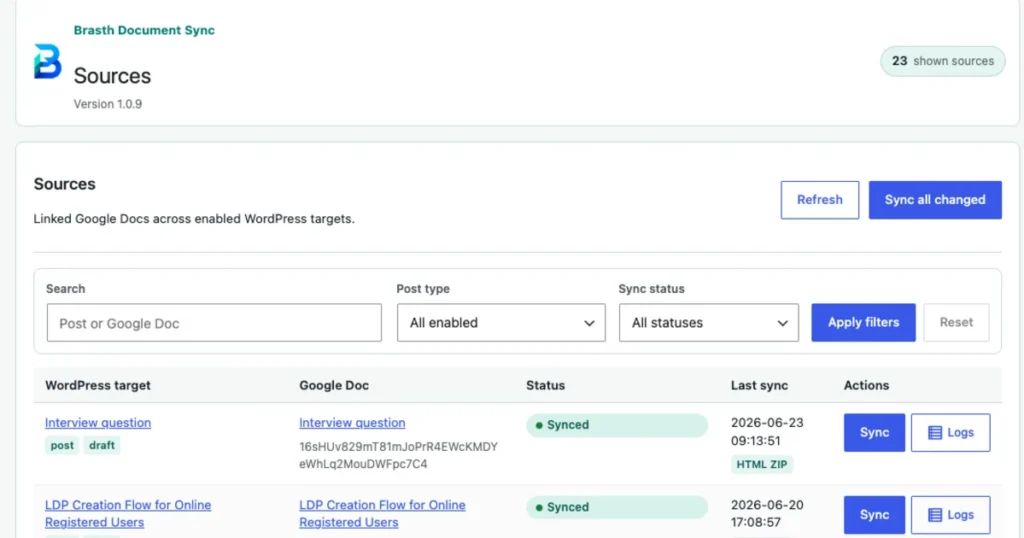
Images are where a Google Docs to WordPress workflow usually breaks down first. Text can look acceptable after copy and paste, but screenshots, diagrams, and inline product images often arrive as remote references, oversized files, missing alt text, or media that no one can find later.
Use this checklist before publishing any article that starts in Google Docs and ends in WordPress. It keeps the handoff practical: WordPress should own the final media, editors should know what changed, and the published post should not depend on fragile document-hosted image links.
1. Confirm which images belong in the final post
Before syncing or importing, scan the Google Doc and decide which images are part of the published article. Remove temporary screenshots, duplicated examples, private notes, and images that only helped the drafting process.
- Keep product screenshots that explain a workflow step.
- Remove internal-only diagrams or credentials before import.
- Replace blurry screenshots before they enter the Media Library.
- Check that every image has a clear purpose in the article.
This saves cleanup later. Once unnecessary images become WordPress attachments, they are harder to audit and easier to reuse by mistake.
2. Make WordPress own the image files
The published post should reference WordPress media URLs, not temporary Google Docs image URLs. WordPress-owned media is easier to cache, resize, back up, and inspect from the Media Library.
When Brasth Document Sync imports a Google Docs draft, review the result in WordPress and confirm that images are attached as local media. If an image still points back to a document-hosted source, treat that as a blocker before publishing.
3. Use descriptive filenames before import
A filename like screenshot-2026-06-28.png does not help an editor or search engine understand the asset. Rename important images before import when possible. Use short, descriptive names that match the article topic.
- Good: google-docs-wordpress-sync-status.webp
- Good: wordpress-media-library-imported-images.webp
- Avoid: image1.png
- Avoid: screenshot-final-final.png
The filename is not a magic ranking factor, but it improves media management and makes future audits much easier.
4. Write alt text for the image, not the keyword
Alt text should describe the image for people who cannot see it. Do not stuff the target keyword into every image. If the screenshot shows a sync status table, describe that table. If the image is decorative, leave the alt text empty.
- Good: Brasth Document Sync sources screen showing Google Docs linked to WordPress posts.
- Good: WordPress Media Library showing imported article screenshots.
- Bad: Google Docs to WordPress images Google Docs to WordPress plugin best plugin.
Useful alt text supports accessibility first. SEO benefits follow from making the page clearer and more complete.
5. Check dimensions and file size
Large screenshots slow down pages when they are uploaded without resizing. Before publishing, check that the featured image and body images are large enough to look sharp but not so large that they punish mobile visitors.
- Use a wide featured image around 1200 by 630 pixels when the design supports it.
- Crop screenshots to the interface area readers need to inspect.
- Prefer WebP for screenshots when quality is acceptable.
- Avoid uploading full desktop screenshots when a focused crop explains the point better.
A clean crop usually performs better than a full-screen capture with browser chrome, sidebars, and empty space.
6. Verify the WordPress post after sync
After the Google Doc is imported, open the WordPress post and inspect the rendered content. Do not only trust the source document. The final check must happen where the article will be published.
- Images render in the correct positions.
- Image URLs point to WordPress uploads.
- Captions survived only where they are useful.
- Alt text exists for meaningful images.
- The featured image is set and fits the blog index layout.
For headless WordPress sites, also verify the frontend route that consumes the WordPress API. The admin editor and public page can fail in different ways.
7. Keep sync status visible to editors
A repeatable workflow needs more than a one-time import. Editors should see which Google Doc is linked to which WordPress post, when it last synced, and whether the latest run completed cleanly.
That is why Brasth Document Sync keeps source mapping, sync status, and logs visible inside WordPress admin. When something fails, editors can inspect the affected source instead of guessing which document created the problem.
A simple pre-publish checklist
- The Google Doc contains only images intended for the final post.
- Important images have descriptive filenames.
- WordPress owns the imported media files.
- Meaningful images have clear alt text.
- The featured image is cropped for the blog layout.
- The public post renders correctly on desktop and mobile.
- Sync status and logs are clean enough for an editor to trust the result.
Use this checklist every time a Google Docs draft includes screenshots, diagrams, or product images. It keeps WordPress as the publishing source of truth and prevents media cleanup from becoming a hidden step at the end of every article.
Get Brasth Document Sync on WordPress.org when you want Google Docs drafts to become clean WordPress content with local media, visible sync status, and fewer manual publishing steps.
Keep reading the publishing library
Browse more setup, workflow, Gutenberg, and media import notes for WordPress publishing teams.
Browse resources