How to Publish Google Docs to WordPress Without Manual Cleanup
Brasth
Learn how to move from Google Docs drafts to clean WordPress Gutenberg content without copy-paste cleanup, broken images, or invisible sync status.
Copying a finished Google Doc into WordPress looks simple until the cleanup starts. Headings lose structure, lists pick up extra markup, images still point back to the document, and editors have no clear view of what changed after the last publish.
The copy-paste problem
Manual transfer creates hidden work for every post. Someone has to restyle the article, download and re-upload images, check links, rebuild tables, and confirm that the WordPress version still matches the approved draft.
That cleanup is easy to miss when teams publish occasionally. It becomes a real operational cost when Google Docs is the normal editorial workspace.
A cleaner publishing workflow
A better workflow lets writers keep drafting in Google Docs while WordPress receives structured content that is ready for review. The handoff should keep the source document visible, import media into WordPress, and show admins what happened during each sync.
- Writers continue using the document workflow they already know.
- Editors map each source document to a WordPress post or page.
- WordPress receives Gutenberg blocks instead of pasted document markup.
- Images are imported into the Media Library for local ownership.
- Sync status and logs stay visible inside WordPress admin.
How Brasth converts Docs to Gutenberg
Brasth Document Sync reads the selected Google Doc and converts supported document structure into WordPress blocks. Headings, paragraphs, lists, tables, and images are translated into publishable Gutenberg content instead of a single pasted blob.
The plugin also keeps the link between the Google Doc and the WordPress target visible in the Sources dashboard. Admins can review the latest sync status, inspect diagnostic logs, and rerun the workflow when the draft changes.
Setup notes for admins
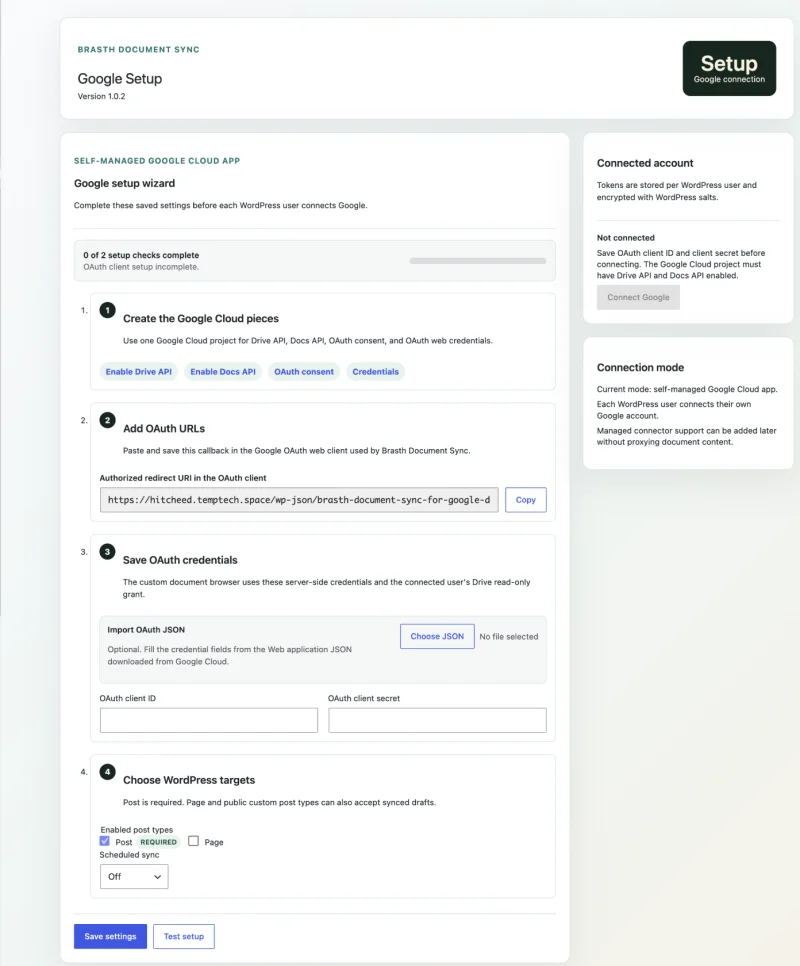
Brasth uses a self-managed Google OAuth client, so the site owner controls the Google Cloud project and credentials. The plugin requests readonly access to selected documents and runs sync work through WordPress.
- Create the Google OAuth client for the WordPress site.
- Connect the account from the Brasth setup screen.
- Add a source by pasting a Google Doc URL or file ID.
- Choose the WordPress target post, page, or supported post type.
- Review imported content and media before publishing changes.
When to use this workflow
This workflow is useful when Google Docs is the drafting source of truth but WordPress must own the published content, media, and editorial review. It fits product guides, support articles, release notes, documentation updates, and marketing content that changes after the first publish.
Publish without manual cleanup
Use Brasth when the team needs a repeatable path from Google Docs to clean WordPress content. It reduces copy-paste cleanup, keeps imported media local, and gives admins a visible sync record for each source document.
Get Brasth Document Sync on WordPress.org or contact Brasth if you want to discuss a publishing workflow before connecting your first document.
Keep reading the publishing library
Browse more setup, workflow, Gutenberg, and media import notes for WordPress publishing teams.
Browse resources