Google Docs to WordPress Sync Security: OAuth, Readonly Drive Access, and Site-Owned Content
Brasth
Learn how Brasth Document Sync handles Google OAuth, readonly Drive access, encrypted tokens, local media, and WordPress-owned synced content.
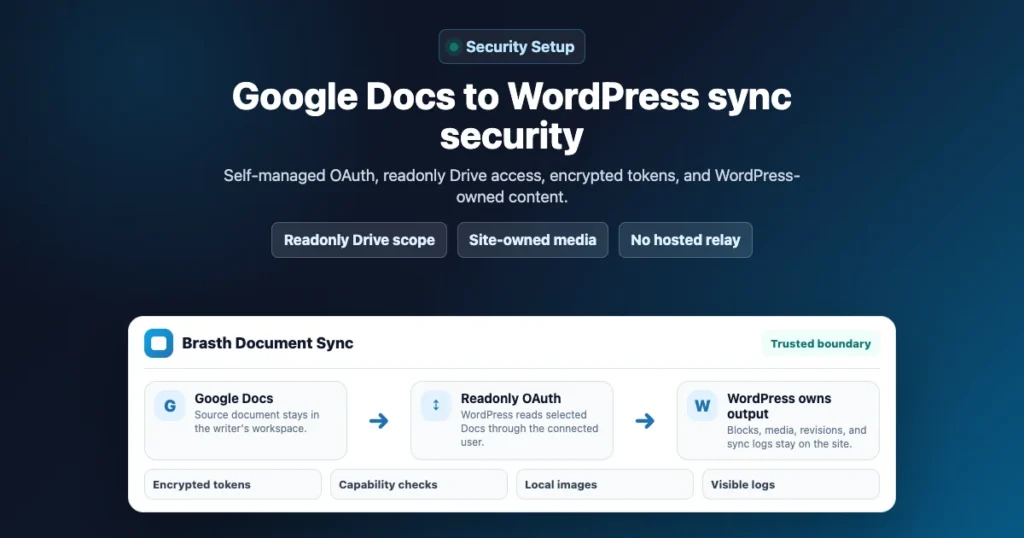
Connecting Google Docs to WordPress is not only a publishing workflow decision. It is also a trust decision.
A sync plugin touches source documents, WordPress posts, imported media, background jobs, and editor permissions. If those boundaries are vague, a team can save time on copy-paste work while creating a new security problem.
Brasth Document Sync is designed around a narrower model: Google Docs remains the writing source, WordPress owns the published content, and the site owner controls the Google connection. This guide explains what that means in practical terms.
The Core Boundary: Google Docs To WordPress Only
Brasth Document Sync uses a one-way workflow. It reads the selected Google Doc and updates the linked WordPress post, page, or enabled public custom post type. It does not turn WordPress into a collaborative Google Docs editor, and it does not push WordPress edits back into the original document.
That boundary matters because it keeps the editorial source clear. Writers continue drafting in Google Docs. Editors review and publish in WordPress. The published post, block markup, imported images, revisions, and public page remain under the WordPress site owner.
If your team wants two-way collaboration, this is the wrong model. If your team wants a controlled handoff from an approved document into WordPress, the one-way model is simpler to reason about and easier to audit.
Self-Managed Google OAuth
Brasth Document Sync uses self-managed Google OAuth. The site owner creates the Google Cloud project, enables the required Google APIs, creates the OAuth web application client, and saves that client ID and client secret in WordPress.
This setup takes more effort than a one-click hosted connector, but it gives administrators a clear ownership model:
- The Google Cloud project belongs to the site owner.
- The OAuth consent screen belongs to the site owner.
- The redirect URI is specific to the WordPress site.
- Each WordPress user connects their own Google account.
- There is no Brasth-hosted content relay in this release.
For agencies and technical WordPress admins, that trade-off is often worth it. The setup is more explicit, but the site owner can inspect the Google project and understand exactly which WordPress site is authorized.
Readonly Drive Scope
The plugin uses Google Drive readonly access: https://www.googleapis.com/auth/drive.readonly.
That scope lets the connected user browse and sync Google Docs their account can read. It does not grant the plugin permission to edit, delete, move, or create files in Google Drive.
Readonly access does not mean “no data access.” During document browsing and sync, WordPress still asks Google for document metadata, document export content, shared drive or folder listings, and image content needed for import. The important difference is that the plugin is built to read selected source material for publishing, not to manage the user’s Drive.
| Action | Expected behavior |
|---|---|
| Browse visible Google Docs | Allowed for the connected user |
| Read a selected document for sync | Allowed for publishing |
| Export document content for WordPress import | Allowed for sync |
| Edit the Google Doc | Not part of the scope |
| Delete or move Google Drive files | Not part of the scope |
| Create Google Drive files | Not part of the scope |
Per-User Google Connections
Each WordPress user connects their own Google account. That is important for editorial teams where different editors may have access to different folders, shared drives, clients, or drafts.
The plugin does not use one global Google user for every sync by default. A connected account is tied to the WordPress user who authorizes it, and source actions still run through WordPress capability checks.
In practical terms, a user needs both sides of permission:
- Google access to the source document.
- WordPress permission to create, edit, or sync the target post type.
This keeps the workflow aligned with normal WordPress ownership. If someone cannot edit a target post in WordPress, they should not be able to attach a Google Doc and overwrite it through sync.
Where Credentials Are Stored
Google OAuth client secrets and connected-user tokens are stored in WordPress, encrypted with WordPress salt material. That means credential storage is tied to the site’s own WordPress environment.
There is a practical operations note here: rotating WordPress salts invalidates stored Brasth Document Sync credentials and Google tokens. That is expected. After a salt rotation, users should reconnect their Google accounts and the site admin should confirm OAuth settings.
This is a better failure mode than silently continuing with credentials that can no longer be decrypted. For teams with formal security rotation procedures, include Brasth reconnection in the post-rotation checklist.
WordPress Owns The Published Content
After a successful sync, the WordPress post contains the converted content. Images exported from Google Docs are imported into the WordPress Media Library, then the post content is rewritten to use local WordPress media URLs.
This is the difference between a durable publishing workflow and a fragile embedded-document workflow. The published article should not depend on temporary Google Docs image URLs or a live Google Doc render.
WordPress ownership also makes normal editorial operations easier:
- WordPress revisions preserve content changes.
- Media can be reviewed in the Media Library.
- SEO plugins can manage the final page metadata.
- Headless frontends can read stable WordPress API output.
- Backups include the published content and imported assets.
If you are evaluating this workflow for a headless site, verify both the WordPress editor and the public frontend route. Admin content and frontend rendering can fail in different places.
Sync Does Not Overwrite Blindly
A safe sync flow should not update post content until the source can be read, media can be imported, HTML can be sanitized, and block conversion can finish.
Brasth Document Sync follows that pattern. It reads Google metadata, exports the document, imports images, sanitizes the result, converts supported structure to Gutenberg blocks or Elementor data when enabled, and only then updates the WordPress target.
If Google blocks an HTML ZIP export because the document is too large, the plugin can retry through the Google Docs API fallback before changing WordPress content. If image import fails, sync should stop with an error rather than publishing a partially rewritten post.
That approach is not only technical hygiene. It protects the editor from a confusing state where half the article changed but key images or code blocks did not arrive.
WP-Cron And Background Sync
Manual and scheduled syncs use WordPress background processing through WP-Cron. That keeps the plugin inside standard WordPress infrastructure, but it also inherits WP-Cron’s limitations.
On normal traffic sites, WP-Cron usually runs when visitors or admins hit the site. On low-traffic sites, locked-down sites, or sites with DISABLE_WP_CRON, admins should configure a real server cron job that calls wp-cron.php. Without that, background sync may queue but not complete reliably.
This is not a reason to avoid the workflow. It is a deployment detail to check before relying on scheduled sync for production publishing.
Uninstall Behavior
Uninstall should not be a surprise. Brasth Document Sync removes plugin settings, encrypted user Google tokens, and scheduled cron events. Synced WordPress posts are not deleted automatically.
Linked post metadata is retained by default so existing content is not destroyed as a side effect of removing the plugin. Full post-meta cleanup is available through the documented full-uninstall constant or filter when a site owner intentionally wants deeper cleanup.
A Practical Admin Checklist
Before using Google Docs sync on a production WordPress site, check these items:
- The Google Cloud project belongs to the site owner or agency.
- Google Drive API and Google Docs API are enabled in that project.
- The OAuth redirect URI exactly matches the WordPress site.
- Editors understand that Google Docs is the source and WordPress is the publishing target.
- Only trusted WordPress users can edit enabled target post types.
- WP-Cron or real server cron is reliable enough for background sync.
- Imported images are reviewed in WordPress before publishing.
- Sync logs are checked when a document fails or skips.
For formatting decisions after the trust boundary is clear, read the layout guide: Google Docs to WordPress Layout Presets: Clean Article vs Documentation.
Bottom Line
The safest Google Docs to WordPress workflow is not the one with the fewest setup steps. It is the one with boundaries an administrator can explain.
Brasth Document Sync keeps those boundaries explicit: self-managed OAuth, readonly Drive access, per-user Google connections, WordPress-owned posts and media, visible sync status, and no hosted Brasth content relay in this release.
Use it when your team wants Google Docs to remain the writing workspace while WordPress owns the final article, media, block structure, and publishing record.
Keep reading the publishing library
Browse more setup, workflow, Gutenberg, and media import notes for WordPress publishing teams.
Browse resources