How to Set Up Google OAuth for Google Docs to WordPress Sync
Brasth
Set up Google OAuth, Drive API, Docs API, and the Brasth redirect URI so WordPress can sync Google Docs safely.
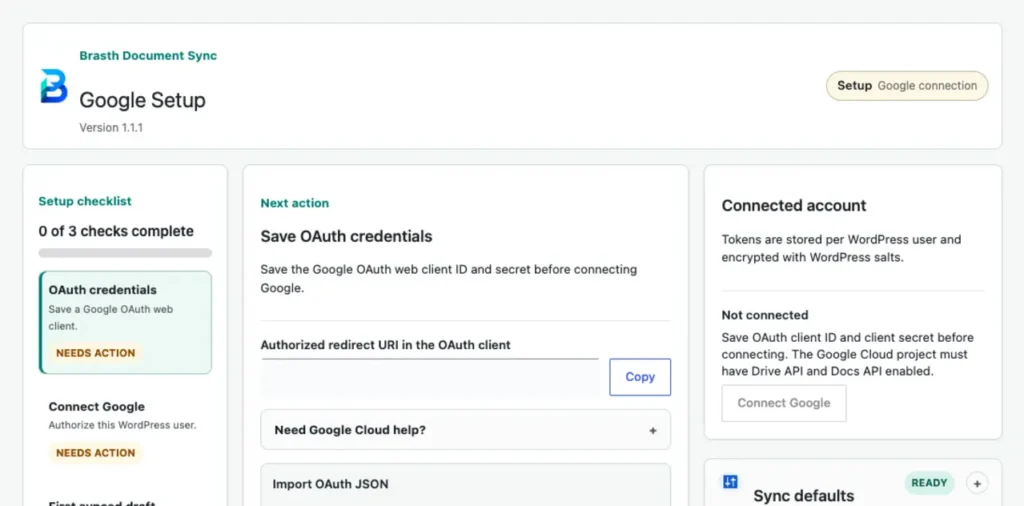
Brasth Document Sync uses self-managed Google OAuth. That means the WordPress site owner supplies the Google Cloud project, the OAuth web client, and the redirect URI. Brasth does not proxy document content through a hosted connector in this release.
This setup takes a few minutes, but it creates a clean ownership boundary: Google Docs stays the writing source, WordPress owns the synced content and imported media, and each WordPress user connects their own Google account.
What You Are Setting Up
The OAuth setup has three pieces:
- a Google Cloud project with Drive API and Docs API enabled
- an OAuth consent screen for the WordPress users who will connect Google
- an OAuth 2.0 web application client with the redirect URI shown by Brasth Document Sync
After those pieces exist, save the client ID and client secret in WordPress, connect a Google account, and create the first synced draft.
Before You Start
Confirm these basics before opening Google Cloud:
- you can access WordPress admin as an administrator
- Brasth Document Sync is activated
- the production site URL is final and uses HTTPS
- the WordPress user who will publish has access to the Google Docs they need to sync
The redirect URI is site-specific. If the site domain changes later, update the OAuth client before reconnecting users.
1. Enable Google Drive API And Google Docs API
Open Google Cloud Console, create or select a project, then enable both required APIs in that same project:
- Google Drive API
- Google Docs API
Brasth uses Drive API to list accessible Google Docs, shared drives, folders, metadata, and exports. It uses Docs API for the large-document fallback when Google blocks a normal HTML ZIP export.
2. Configure The OAuth Consent Screen
Configure the OAuth consent screen for the Google accounts that will connect to WordPress. If the app is in Google test mode, add every WordPress editor or administrator who needs to connect Google as a test user.
Keep the app name recognizable for the team. Editors should understand that they are connecting Google to the WordPress site they manage.
3. Create An OAuth Web Application Client
Create an OAuth 2.0 client and choose the web application client type. Brasth Document Sync needs a web client because Google redirects the user back to the WordPress REST callback after authorization.
Do not guess the callback URL. Copy it from WordPress admin.
4. Copy The Redirect URI From WordPress
In WordPress admin, open Brasth Document Sync > Setup. The setup workspace shows the authorized redirect URI for the current site.
Copy that exact value into the Google OAuth web client under authorized redirect URIs. It should use this shape:
https://example.com/wp-json/brasth-document-sync-for-google-docs/v1/oauth/google/callbackReplace example.com with the real WordPress site domain shown in the plugin. The value must match exactly, including HTTPS, domain, path, and trailing path segments.
5. Save The OAuth Client ID And Secret
After creating the OAuth client, copy the client ID and client secret into the Brasth setup screen. You can also import the OAuth JSON downloaded from Google Cloud so the fields are filled locally in the browser.
Brasth stores the site client secret in WordPress using encryption based on WordPress salts. If those salts rotate later, saved OAuth credentials and connected-user tokens must be re-created.
6. Connect A Google Account
Once the site credentials are saved, each WordPress user connects their own Google account. The plugin uses the readonly Drive scope:
https://www.googleapis.com/auth/drive.readonlyThat scope lets the connected user browse and sync Google Docs their account can read. It does not give Brasth a write path back into Google Docs.
7. Choose Sync Defaults
Use Sync defaults to choose where synced drafts can be created and how new block editor imports should be shaped.
- Enabled post types: posts are always supported; pages and public custom post types can be enabled when needed.
- Scheduled sync: leave off for manual workflows, or choose a WP-Cron interval for recurring sync.
- Default synced layout: use Clean Article for normal posts, Documentation for code-heavy guides, and Plain Blocks when an existing site needs legacy output.
- Elementor sync: enable only when the site uses Elementor and you want source-specific Elementor output.
Common Setup Problems
Most OAuth setup issues come from a small set of mismatches:
- Redirect URI mismatch: copy the URI from the Brasth setup screen again and update the Google OAuth client.
- Drive or Docs API missing: enable both APIs in the same Google Cloud project used by the OAuth client.
- Google app in test mode: add the connecting WordPress user as a Google test user.
- Wrong Google account: connect the account that can read the source Docs or shared drive.
- Low-traffic scheduled sync: configure a real server cron for
wp-cron.phpif background jobs do not run reliably.
First Synced Draft Checklist
After OAuth is connected, create a draft before publishing publicly. Check that:
- the selected Google Doc is the intended source
- the WordPress target post type is correct
- images were imported into the WordPress Media Library
- the selected layout preset matches the document type
- Sources shows the latest sync status
- Sync Activity has enough detail if the run skipped, stalled, or failed
Related Reading
For the wider publishing flow, read How to Link Google Docs to WordPress and Track Every Sync. For access boundaries, read Google Docs to WordPress Sync Security. For output choices, read Google Docs to WordPress Layout Presets.
Bottom Line
OAuth setup is the trust boundary for a Google Docs to WordPress workflow. Use a site-owned Google Cloud project, copy the exact redirect URI from WordPress, connect each editor’s Google account, and verify the first synced draft before publishing.
Get Brasth Document Sync on WordPress.org when your team drafts in Google Docs but needs WordPress to own the final content, media, block structure, and sync status.
Keep reading the publishing library
Browse more setup, workflow, Gutenberg, and media import notes for WordPress publishing teams.
Browse resources