How to Link Google Docs to WordPress and Track Every Sync
Learn how to link Google Docs to WordPress posts, create synced drafts, monitor source status, and inspect sync activity inside WordPress admin.
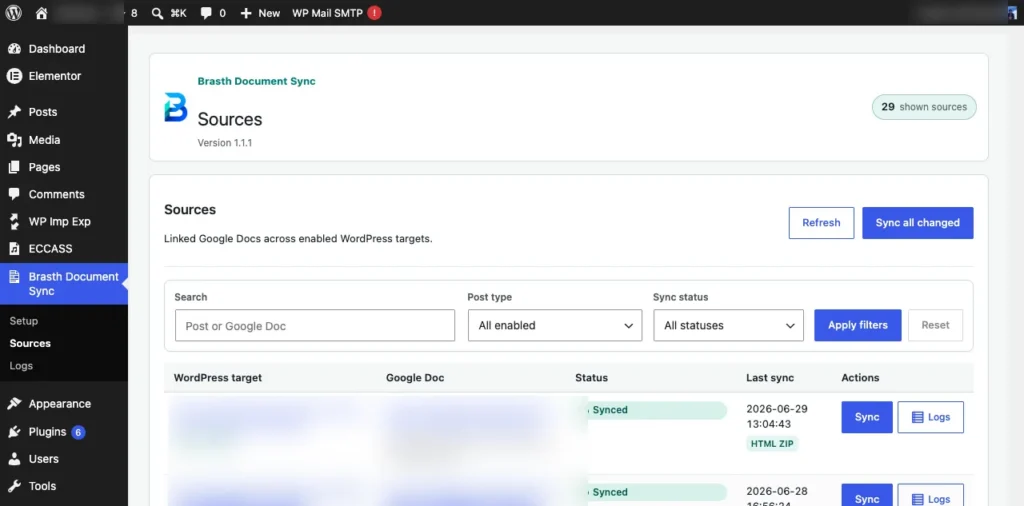
A Google Docs to WordPress workflow does not end when the first draft imports successfully. Editors still need to know which document is linked, which WordPress post it updates, when sync last ran, and where to look when a document skips or fails.
Brasth Document Sync keeps that workflow inside WordPress admin. This guide shows the practical operator flow: start from Posts, choose the source document, create or update the WordPress target, then use Sources and Sync Activity to verify what happened.
Before You Link A Google Doc
Set up the basics first. The site owner should save the Google OAuth client, the editor should connect their Google account, and the target post type should be enabled in Sync defaults. If your site uses scheduled or background sync heavily, confirm that WP-Cron or a real server cron is reliable.
The trust boundary is still simple: Google Docs remains the writing source. WordPress receives the published content, imported media, block structure, revisions, and sync history.
1. Start From The WordPress Posts List
The fastest path for editors is the normal WordPress Posts screen. Brasth adds an Add Sync Doc action near the list filters and a sync status column beside each row.
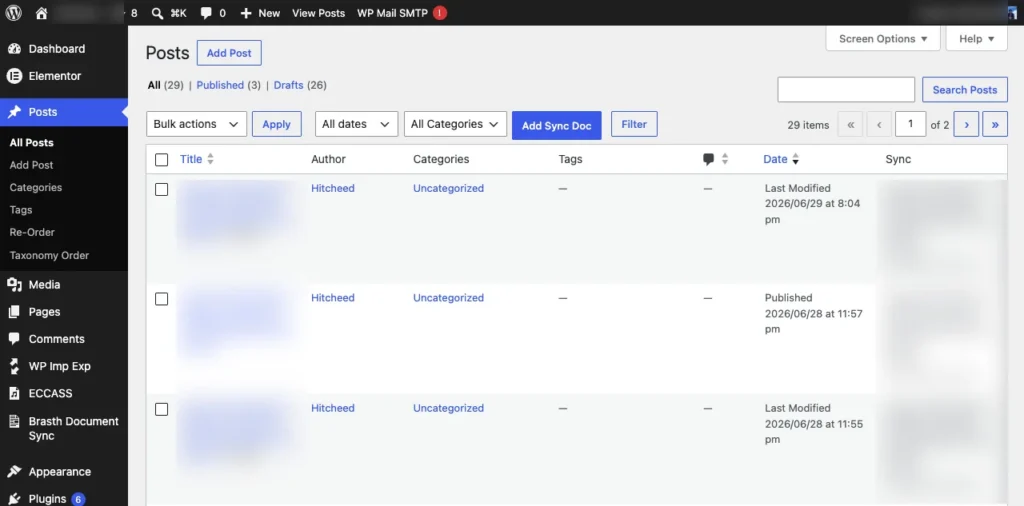
Use Add Sync Doc when the Google Doc should become a new synced draft. Use a row-level sync action when a post is already linked and the source document has changed.
2. Choose The Google Docs Source
The Link Google Doc modal gives editors three source paths: browse accessible Google Docs, paste a Google Docs URL, or paste a raw file ID. That keeps the workflow flexible for teams that know the source link and teams that prefer to search Drive from WordPress.
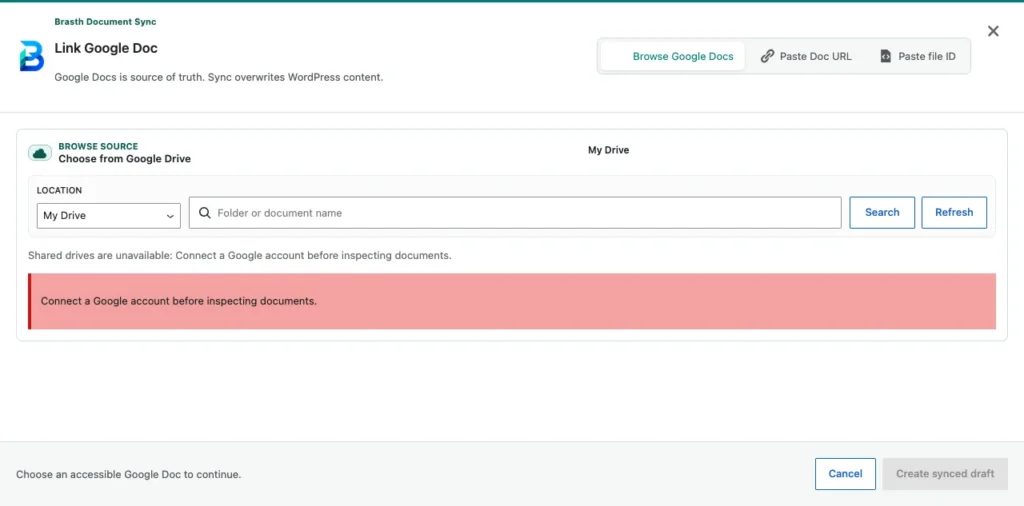
The Drive browser uses the connected WordPress user’s Google account. If a document is not visible, check the Google account, document permissions, shared-drive access, and whether the Drive and Docs APIs are enabled in the site owner’s Google Cloud project.
3. Create A Synced Draft First
For a new source, create a draft before publishing. A draft gives editors a safe place to inspect headings, lists, tables, imported images, layout preset output, and any source-specific notes before the post is public.
For normal articles, start with the Clean Article layout. For developer docs, API guides, commands, or callouts, use Documentation. Keep Plain Blocks when an existing site needs stable legacy output.
4. Track Every Linked Source
After documents are linked, the Sources dashboard becomes the main operations view. It shows the WordPress target, Google Doc, status, last sync time, sync method, and row-level actions.
This screen is useful for repeat publishing work because it answers the questions editors ask most often: what is linked, what changed, what synced, and where can I inspect logs?
5. Use Sync Activity For Troubleshooting
When a sync does not finish cleanly, go to Sync Activity instead of guessing. The activity console supports search, manual refresh, auto-refresh, and troubleshooting views for events that need attention, stalled WP-Cron jobs, and large document fallback.
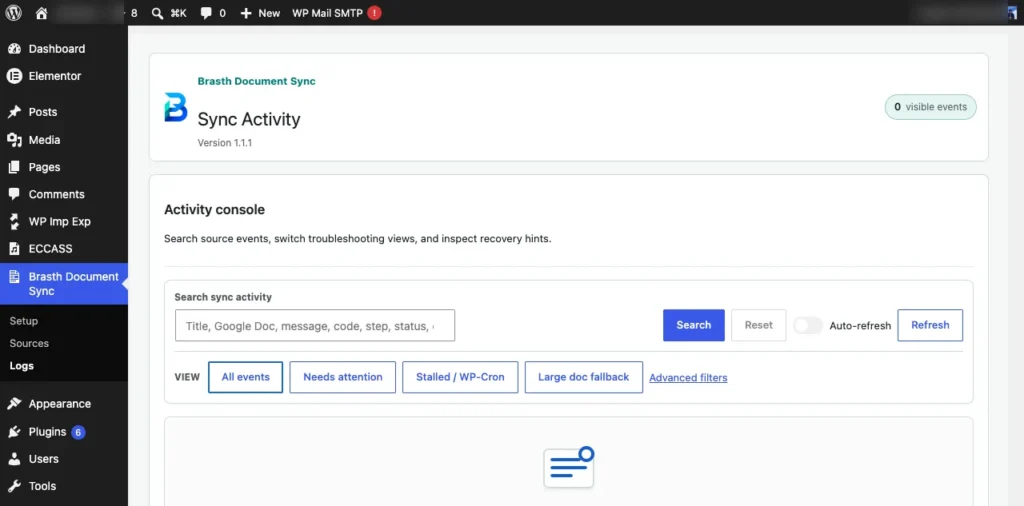
A skipped sync can be normal when the Google Doc and layout fingerprint are unchanged. An error needs review. A stalled sync usually points to WP-Cron, PHP errors, or a background job that stopped before completion.
6. Review The WordPress Result
The final review should happen in WordPress, not only in Google Docs. Open the synced draft or updated post and check that the imported content is readable, images are local WordPress media, code blocks or callouts kept their structure, and the public frontend renders the post correctly.
- Confirm the source Google Doc is the intended document.
- Confirm the target post, page, or custom post type is correct.
- Check the selected layout preset before the first sync.
- Verify images are imported into the Media Library.
- Open Sources to confirm the last sync status.
- Open Sync Activity if the run skipped, stalled, or failed.
Recommended Reading
For the broader publishing workflow, read How to Publish Google Docs to WordPress Without Manual Cleanup. For media-heavy articles, use the image import checklist. For formatting choices, read the layout presets guide. For access boundaries, read the OAuth and security guide.
Bottom Line
A good Google Docs to WordPress workflow needs visible operations, not just an import button. Editors should know where a source is linked, when it last synced, why a run skipped, and what to inspect before publishing.
Brasth Document Sync gives that workflow a WordPress-native shape: Add Sync Doc for creation, Sources for linked document status, Sync Activity for diagnostics, and Gutenberg output that editors can review before the post goes live.
Get Brasth Document Sync on WordPress.org when your team drafts in Google Docs but needs WordPress to own the final content, media, and sync record.
Keep reading the publishing library
Browse more setup, workflow, Gutenberg, and media import notes for WordPress publishing teams.
Browse resources